 BE VOICE
AI agents
Set up an AI agent
An AI agent is a virtual staff member that talks on the phone for your business. It can answer your calls, help callers from what it knows, put them through to the right person and take messages. It can also make calls for you, such as appointment reminders.
What an AI agent can do
- Answer calls on your number, any time of day, with your own greeting.
- Answer questions from the facts you give it: opening hours, address, services and so on.
- Put callers through to a phone, a ring group, a queue, a mobile, or another AI agent.
- Take messages when nobody can take the call, and send them to you.
- Make calls in a campaign: reminders, follow-ups, questions or a sales offer, and record how each call went.
You manage your agents on the AI agents tab of the console. Your agents are listed on the left; pick one to open it in the editor on the right.

How to create an agent
- Open AI agents → + New.
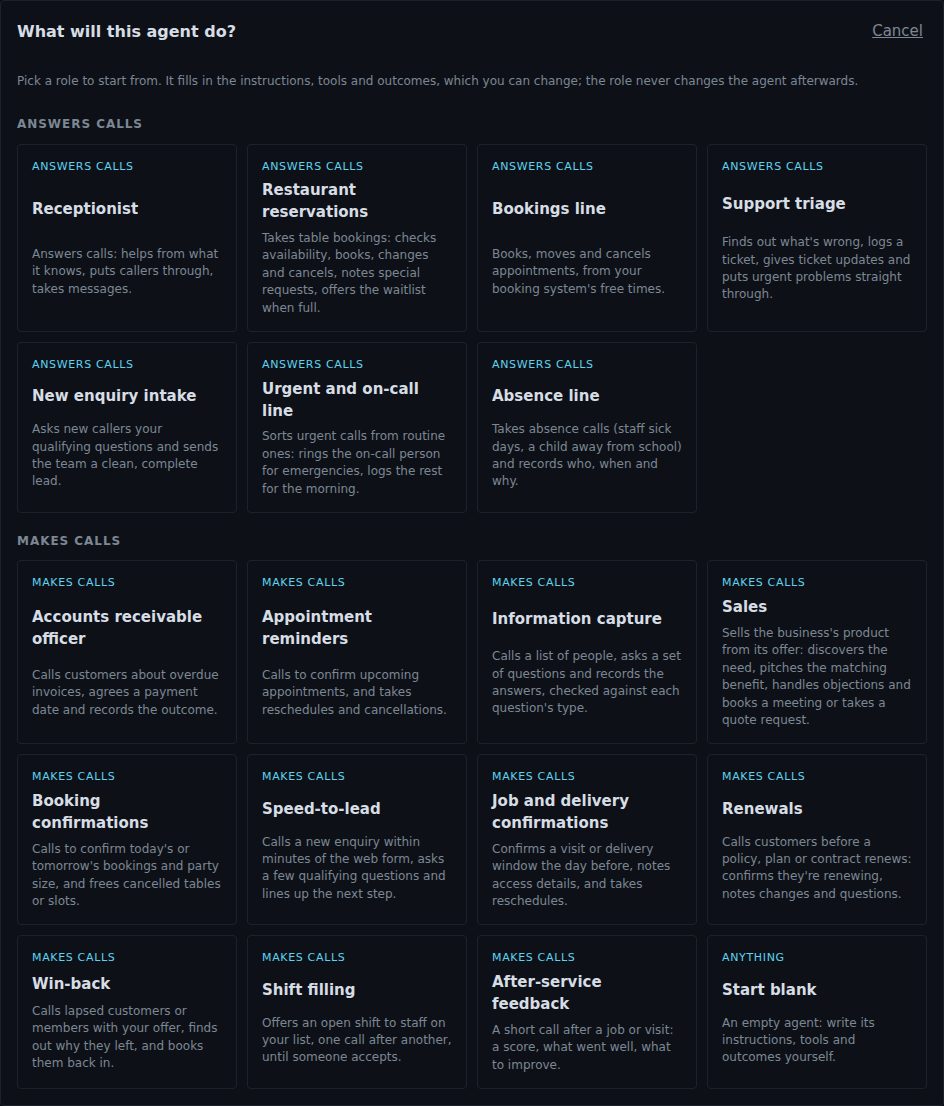
- Pick what the agent will do. Each card says whether it answers calls or makes calls.
- Give the agent a name in Agent name, for example "Receptionist" or "Booking reminders".
- Work through the tabs and change anything that doesn't suit your business. At the very least, check the greeting on Basics and fill in the knowledge on Behaviour (look for "(fill in)").
- Press Save. Nothing is kept until you save.
The roles
The roles come in two groups. Pick the one closest to the job; you can change everything it fills in.
Agents that answer calls
- Receptionist
- Helps callers from what it knows, puts them through to your people and takes messages. This is the one most businesses start with.
- Restaurant reservations
- Takes table bookings: checks availability, books, changes and cancels, notes special requests, offers the waitlist when full.
- Bookings line
- Books, moves and cancels appointments, from your booking system's free times.
- Support triage
- Finds out what's wrong, logs a ticket, gives ticket updates and puts urgent problems straight through.
- New enquiry intake
- Asks new callers your qualifying questions and sends the team a clean, complete lead.
- Urgent and on-call line
- Sorts urgent calls from routine ones: rings the on-call person for emergencies, logs the rest for the morning.
- Absence line
- Takes absence calls (staff sick days, a child away from school) and records who, when and why.
Agents that make calls
- Accounts receivable officer
- Calls customers about overdue invoices, agrees a payment date and records the outcome.
- Appointment reminders
- Calls to confirm upcoming appointments, and takes reschedules and cancellations.
- Information capture
- Calls a list of people, asks a set of questions and records the answers, checked against each question's type.
- Sales
- Sells the business's product from its offer: discovers the need, pitches the matching benefit, handles objections and books a meeting or takes a quote request. It works from an offer you describe on its Offer tab.
- Booking confirmations
- Calls to confirm today's or tomorrow's bookings and party size, and frees cancelled tables or slots.
- Speed-to-lead
- Calls a new enquiry within minutes of the web form, asks a few qualifying questions and lines up the next step.
- Job and delivery confirmations
- Confirms a visit or delivery window the day before, notes access details, and takes reschedules.
- Renewals
- Calls customers before a policy, plan or contract renews: confirms they're renewing, notes changes and questions.
- Win-back
- Calls lapsed customers or members with your offer, finds out why they left, and books them back in.
- Shift filling
- Offers an open shift to staff on your list, one call after another, until someone accepts.
- After-service feedback
- A short call after a job or visit: a score, what went well, what to improve.
- Start blank
- An empty agent. You write its greeting, instructions and everything else yourself.
A role is only a starting point. It fills in the greeting, instructions, outcomes and so on, and you can change all of it. Changing an agent later never depends on its role, and the role badge next to the name is just a reminder of where it started.
The default agent
Tick Default agent to make an agent your business's default. It's marked default in the list. The default agent is the one that answers when a call routing step says "AI agent" without naming a particular agent. If you don't have a default agent yet, a new agent that answers calls starts with the box ticked.
The editor's tabs at a glance
- Basics
- Your business name and time zone, the greeting, the closing line, and the voicemail message for calls it makes. See Greeting, persona and knowledge.
- Behaviour
- The persona (who it is and its tone), step-by-step instructions, and the knowledge it answers from.
- Transfers
- The people, teams, numbers and other agents it can put callers through to. See Transfers and handing over.
- Tools
- Let the agent look things up in, or record things to, your own business system, such as checking an order.
- Offer
- Only for sales agents: the product or service it sells.
- Questions and Outcomes
- What it asks and records, and how a call can end. Mostly for agents that make calls. See Messages, questions and outcomes.
- Messages
- Whether it takes messages, what details it collects, and where messages are sent.
- Voice and music
- How it sounds, an optional background sound, and the music callers hear on hold. See Voice and background sound.
The numbers on the tab names show how many transfers, tools, questions or outcomes the agent has.
How to check your agent before it takes calls
- On Voice and music, press ▶ Hear greeting to hear one of its greetings in the agent's voice, with its background sound if it has one. Press it again to hear another greeting if you've written several.
- Save the agent, then press Preview prompt. It shows the greeting as a caller would hear it (with your business name filled in) and everything the agent is told: its persona, instructions, knowledge, transfers and how to take a message. It includes changes you haven't saved yet, so you can check them before you save.
- Put the agent on your number (below), then ring your number from your mobile and try it as a caller would.
How to put an agent on your number
There are two ways:
- Straight to the agent: on the Numbers tab, set What answers for your number to the agent, for example "AI agent: Receptionist". Every call to that number goes to the agent. See Your numbers.
- As part of your call routing: add an AI agent step to your routing, for example after hours, or when nobody in the office answers within 20 seconds. See Routing steps.
How to use an agent in a campaign
Agents that make calls do their work in campaigns. Create the agent from one of the "makes calls" roles, then open Campaigns, create a campaign and choose the agent under AI agent. The campaign gives the agent its list of people to call; each person's details (such as their name or appointment time) can be used in the agent's greeting and instructions. See Campaigns.
Other things you can do
- Reset to the starting template
- At the bottom of the editor. Replaces the agent's text with a fresh starting template. Nothing changes until you press Save, so you can still back out by picking another agent and discarding the changes.
- Delete agent
- Removes the agent for good. If your call routing sends calls to this agent, that step is skipped from then on, so move your routing to another agent first.