 BE VOICE
Campaigns
Campaign results and do-not-call
Every time a campaign runs, BE Voice records what happened with each person on the list: whether they were reached, what they said, and anything the AI agent collected. This page explains the results, how to download them, and how the do-not-call list keeps people from being called again.
How to see a run's results
- Open Campaigns and click the campaign.
- In the Runs list, click a run. The latest run opens by default. Test runs are marked Test.
- The run's results appear underneath. While a run is going, they update by themselves every few seconds.
- Click a contact's row to open their call: the summary, the full conversation and the recording.
Across the top of a run you'll see totals: Contacts, Reached, No answer, To call (or Not called once the run is over) and Skipped.
What a run's status means
- pending
- The run has been created and is about to start.
- fetching
- The run is getting today's list from your own system (only when the campaign is connected to one).
- running
- The agent is working through the list.
- done
- Everyone has been called, or the calling window has closed.
- stopped
- Someone clicked Stop. Calls that were in progress still finished and were recorded.
- failed
- The run couldn't go ahead, for example because the list couldn't be fetched. The reason is shown on the run.
What each contact's result means
Each person on the list has a Status, the number of Attempts, and, once they've been reached, an Outcome.
- pending
- Not called yet in this run.
- calling
- The agent is on the phone to them now.
- waiting retry
- They didn't answer, or asked to be called back later today. The time of the next try is shown underneath.
- done
- They answered and the call finished.
- no answer
- They didn't pick up on any attempt. If the call went to their voicemail, the agent doesn't try again in that run; the next run will.
- skipped
- They weren't called. The reason is shown underneath: on the do-not-call list, contact limit reached (the calling rules or your “days before the same person is called again” setting), calling hours ended, not a phone number or number can't be called.
- not called
- The run ended (stopped, or the calling window closed) before they were reached.
The Outcome is how the call ended, using the outcomes in your agent's script: for example, an appointment confirmed, a payment promised or a reschedule requested. Underneath you may also see:
- Details the agent recorded with the outcome, such as a new appointment time.
- Answers to any questions in the agent's script.
- call back and a time, when the person asked to be called back.
- An Opted out badge, when the person asked not to be called again.
- A Note from the agent about the call.
If the campaign sends results to your own system, a Sent to your system column shows Sent or Not yet for each person.
To change what your agent asks and which outcomes it records, see Messages, questions and outcomes.
How to download the results
- Open the campaign and click the run.
- Click Export CSV.
You get one row per person with their contact_id, name, phone, status, attempts and outcome, then a column for each of the agent's questions and details, followed by any questions they skipped, the agent's note, a call-back time, whether they opted out, any meeting or quote, and when the row was last updated. Open it in Excel or Google Sheets, or import it into your own system using contact_id to match people up.
The do-not-call list
Your business has one do-not-call list, shared by all your campaigns. It's at the bottom of the Campaigns tab. Campaigns never call a number on this list, whichever contact list it turns up in. A test run to a number you type in yourself isn't affected.

People who opt out on a call are added automatically. If someone tells the agent they don't want to be called again, their number goes on the list straight away with the reason Asked not to be called again, on a call, and their result shows Opted out.
How to add a number
- Open Campaigns → + Add number (in the Do not call box).
- Type the Phone number, and a Reason if you like, such as “Asked by email”.
- Click Add.
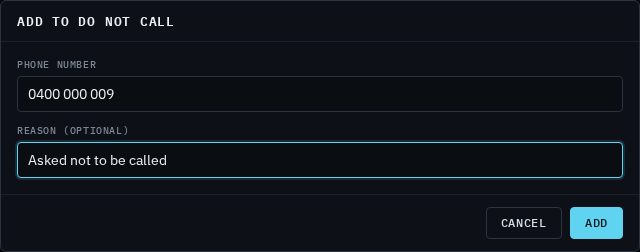
How to import a list of numbers
- Click Import… in the Do not call box.
- Choose a CSV file with a phone column (and a reason column if you have one), or a plain text file with one number per line.
- Click Import. A message tells you how many numbers are now on the list, and how many lines weren't phone numbers.
Use this for your own list of people who've asked not to be called, or for the numbers a Do Not Call Register check came back with. Numbers already on the list stay as they are.
Downloading or removing numbers
Click Download for a CSV of the whole list. To allow calls to a number again, click Remove next to it and confirm. Only do this if the person has asked to be called again.
Permission to call (telemarketing campaigns)
Sales calls mustn't go to numbers on the national Do Not Call Register unless the person is your customer or has agreed to be contacted. So a campaign that uses the Telemarketing (selling) profile has a Permission to call box on its page, and it can only make test runs until you fill it in.
- On the campaign's page, click Declare… in the Permission to call box.
- Choose the Basis: They are our customers, or agreed to be contacted, or We washed the list against the Do Not Call Register. For a wash, enter the date under Washed on.
- Click Declare. Your name and the time are recorded with it.