 BE VOICE
Your phone system
Routing steps and their options
Each box on the routing canvas is a step: something that happens to the call. This page explains every kind of step in the palette and every option in its side panel.
How to add and set up a step
- Open Routing.
- Drag a step from the palette on the left onto the canvas, or click it to drop it in the middle.
- Click the step to open its settings in the side panel.
- Wire it in: drag from the dot of the rule, key or step before it, and let go on it.
- Trace a call to check it, then Publish.
To turn one kind of step into another, change This step at the top of the side panel. The full walk-through of the canvas is in Call routing.
Steps that ring someone (an extension, ring group, queue or divert) have a dot on the right for "if nobody answers". Drag it to the next step to try; that wire is dashed. You can have up to three steps in a row. An AI agent, Voicemail and Hang up always take the call, so nothing comes after them.
Rules by time
Not a step that answers the call, but the box that splits calls by when they arrive: open hours, holidays, closures and other times. A number connects to it, and each rule connects to its first step. It's explained in full in Opening hours, holidays and switches.
Extension
Rings one phone.
- Phone
- The extension to ring, for example 101 – Front desk. Phones are set up on the Phones tab; see Phones and extensions.
- Ring for (seconds)
- How long it rings before moving to the next step: 5 to 300 seconds. Leave it empty for the usual 30.
Ring group
Rings a group of phones, all at once or one at a time, as the group is set up. The box shows which, and for how long.
- Ring group
- Which group. Members and settings… opens the group to change who's in it, and + New… creates a new group. These changes apply straight away, without publishing. See Ring groups.
- Ring for (seconds)
- How long to ring here, 5 to 300 seconds. Leave it empty to use the group's own ring time.
Queue
Answers the caller and holds them in a queue, with hold music, until someone in the queue takes the call.
- Queue
- Which queue. Members and settings… and + New… work as for ring groups. See Queues.
- Wait at most (seconds)
- How long a caller waits before moving to the next step: 5 to 3,600 seconds. Leave it empty to use the queue's own maximum wait.
- Priority (0–10)
- When several callers are waiting, a higher priority is answered first. Useful if two numbers share one queue and one matters more, such as an emergency line.
AI agent
Hands the call to one of your AI agents, which answers, talks with the caller and can take a message or transfer them as its own settings say.
- Agent
- Which agent. Default agent uses whichever agent is marked as your default, so the routing follows if you change the default later.
The agent always takes the call, so nothing follows it on the canvas. Who it can put callers through to is set in the agent itself: see Transfers and handing over.
Divert
Rings a number outside BE Voice, such as a mobile or another office. Harbour Plumbing uses one for burst pipes: the on-call plumber's mobile, 0400 000 000.
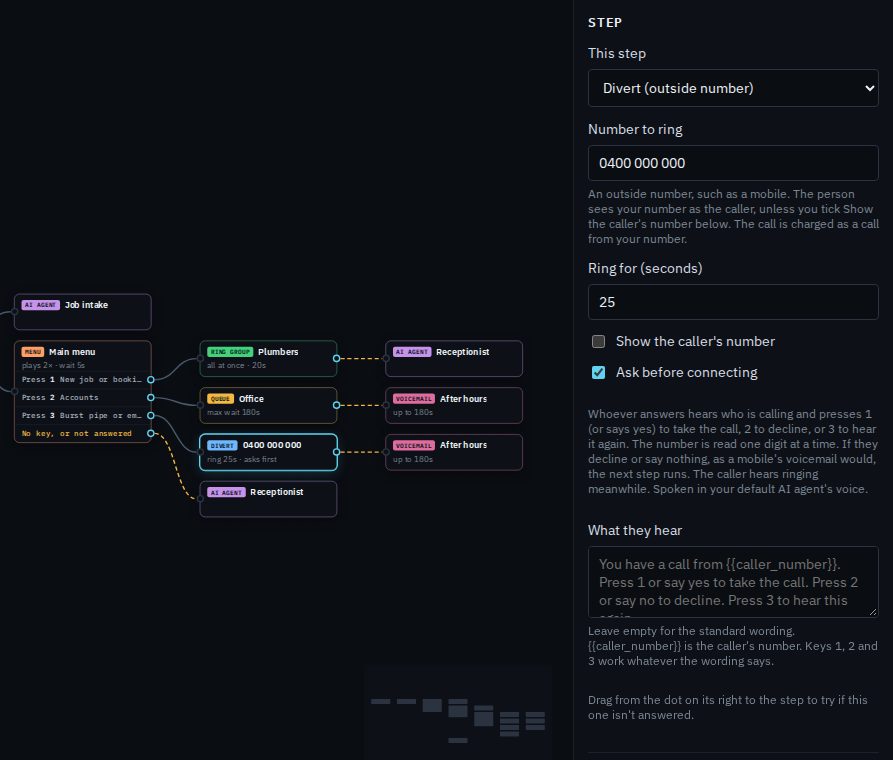
- Number to ring
- A mobile or landline, written the usual way (0400 000 000), or a 13 or 1300 number. Emergency and premium-rate numbers can't be used.
- Ring for (seconds)
- How long it rings before the next step, 5 to 300 seconds. Leave it empty for 30. When Ask before connecting is on, it rings for at most 60 seconds.
- Show the caller's number
- Normally the person you divert to sees your business number, 03 7000 0000, as the caller. Tick this so they see the caller's own number instead. This only works if your phone line allows sending another caller ID; if it doesn't, they keep seeing your business number.
- Ask before connecting
- Whoever answers hears who is calling first, and presses 1 (or says yes) to take the call, 2 (or says no) to decline, or 3 to hear it again. The caller's number is read out one digit at a time. If they decline or say nothing, which is what a mobile's own voicemail does, the next step runs instead, so the caller doesn't end up in someone's personal voicemail. The caller hears ringing meanwhile. The announcement is spoken in your default AI agent's voice.
- What they hear
- Your own wording for the announcement, up to 500 characters. Leave it empty for the standard one. Put
{{caller_number}}where the caller's number should be read. Keys 1, 2 and 3 work whatever the wording says.
Menu
Plays a recording such as "press 1 for a new job, 2 for accounts" and sends the caller where the key says. The box has a dot for each key, plus a last dot, No key, or not answered, for callers who press nothing.
- Menu
- Which menu. A menu's recording and keys are set on the IVR menus tab; Greeting and keys… and + New menu… open it from here.
- Keys
- Each key the menu offers, and whether it's connected yet. A key that isn't connected plays the menu again.
Everything about menus is in Menus (press 1 for…).
Switch
Sends calls one way while a switch is on and another while it's off, such as "Storm mode" or "Closed today". The box has a dot for When on, one for When off, and Not answered for when nobody answers that side (or that side has no steps).
- Switch
- Which switch. + New switch… creates one. The panel shows whether it's on now, who changed it last, and a button to turn it on or off.
Flipping a switch is live from the next call, with no publishing. See Switches.
Voicemail
Answers, plays a greeting and a tone, and records the caller's message.
- Mailbox
- Which mailbox keeps the message. A mailbox has its own greeting, longest message length and email addresses; Greeting and settings… and + New mailbox… open it from here.
- No mailbox
- The message goes to the Messages tab instead. You can then choose a Greeting (or keep the Standard greeting) and the Longest message (seconds), 10 to 300, right in the step.
More in Voicemail.
Hang up
Ends the call. Use it at the end of a path where you'd rather not take messages, for example on a number you're retiring.
Webhook: send to your app
This one is for businesses whose own software decides what happens to a call, such as a booking system that knows which customer is calling. BE Voice asks your app at the Address you enter, and your app replies with what to do. If your app doesn't answer or something goes wrong, the next step runs, so always connect a step after it. The box shows Your app decides. If you don't have software like this, you don't need this step.