 BE VOICE
AI agents
Messages, questions and outcomes
Besides talking, your agent can collect information for you: a message when nobody can take the call, answers to a set of questions, and a clear result for every call it makes. This page covers the Messages, Questions, Outcomes, Offer and Tools tabs.
How to have the agent take messages
- Open AI agents, pick the agent, and open the Messages tab.
- Tick Take messages when nobody can take the call.
- In Details to collect, list what the agent should ask for, separated by commas, for example full name, best phone number, what it's about.
- Optionally, choose where else this agent's messages go (below).
- Press Save.
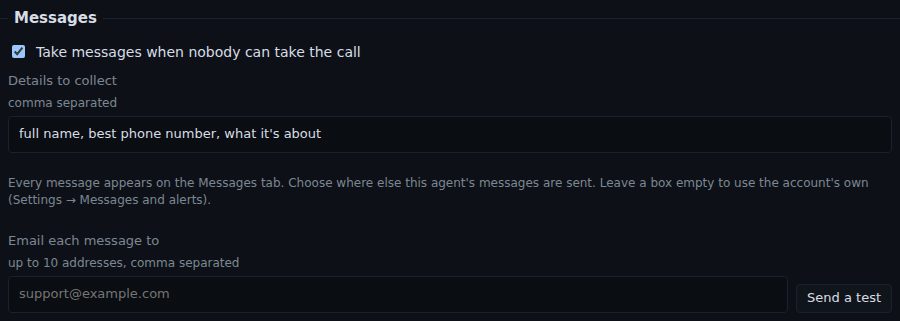
The agent collects each detail, reads the message back to the caller to check it, and saves it. It offers to take a message when a transfer isn't answered, when nobody suitable is available, or whenever the caller asks.
Where messages end up
- The Messages tab
- Every message appears on the console's Messages tab. See Messages.
- Email each message to
- Up to 10 email addresses, separated by commas. Press Send a test to check the email arrives.
- Send each message to a webhook
- For businesses that want messages sent straight into another system or an on-call alerting service. Your IT person or provider will give you the address to put here. Press Send a test to try it.
Leave a box empty to use your business's usual addresses, set in Settings → Messages and alerts. See Messages and alerts.
How to have the agent ask set questions
Questions are for calls that collect information, such as checking customer details. The agent asks each one in its own words, one at a time, and records the answer.
- Open the Questions tab and press + Add question.
- Type the Question, for example "When is the best time of day to reach you?"
- Give it a short Key (for the results), for example
best_contact_time. This is the column name you'll see in the results. - Choose the Answer type, and tick Required if the call isn't complete without it.
- Add the rest of the questions in the order they should be asked, then press Save.
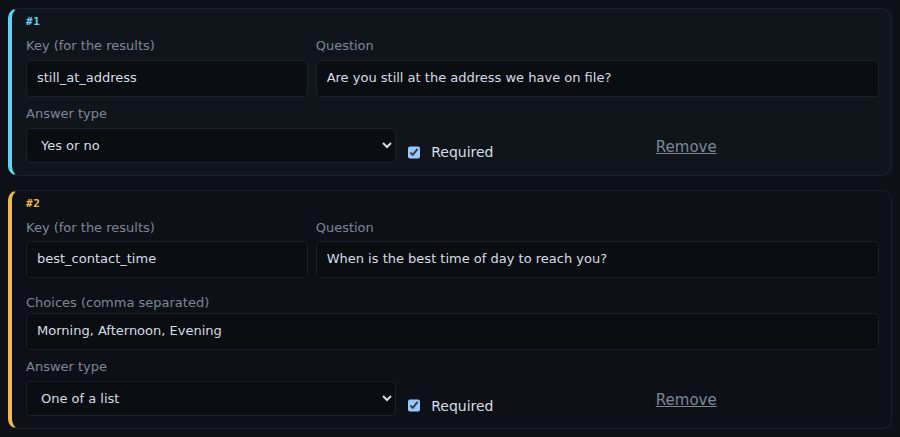
- Answer type
- Free text, A number, Yes or no, One of a list (type the Choices, separated by commas) or A date. The agent checks each answer fits, and asks once more if it doesn't.
- Required
- A call where every required question was answered ends as completed; otherwise it ends as partial. Add outcomes called
completedandpartialon the Outcomes tab so you can see which is which.
How to record how each call ended
Outcomes are the ways a call can end, such as "confirmed", "reschedule" or "wrong number". They're mostly for agents that make calls. With outcomes set, the agent must choose one when it ends each call, along with any details you ask for and a short note.
- Open the Outcomes tab and press + Add outcome.
- Give it a Name, for example
reschedule. - In When it applies, describe it, for example "They need a different time".
- Optionally list Details to capture, for example
preferred_time. - Press Save.
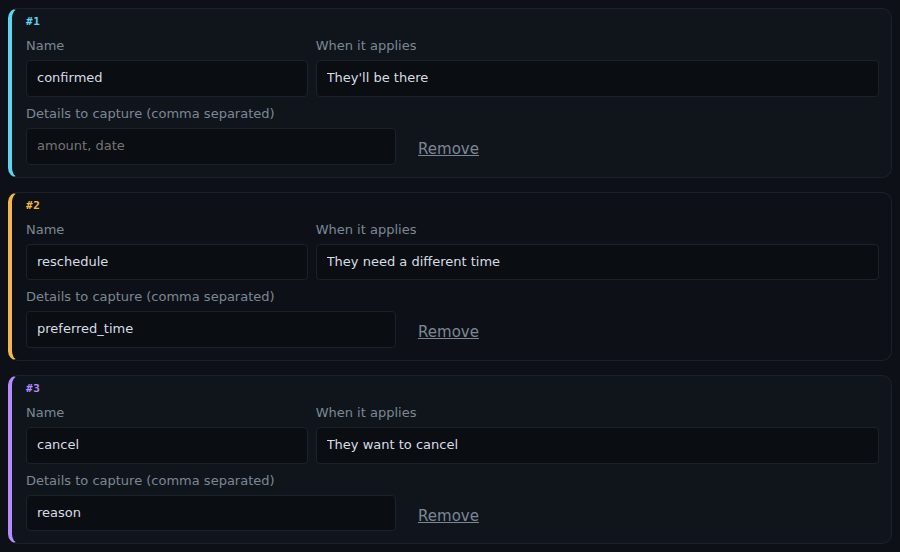
You'll see the outcome, its details and the note in the call's details on the Calls tab, and for campaign calls in the campaign's results. See Calls, recordings and transcripts and Results and do-not-call.
- Summary instructions (under After the call)
- After each call the agent writes a short summary. Use this box to say what you want in it, for example "One or two sentences for the bookings team: confirmed, rescheduled (to when) or cancelled (why)."
The sales offer
A sales agent sells only from its offer, on the Offer tab. It opens the call, asks your discovery questions, pitches the one benefit that matches what the person said, answers objections, and closes by booking a meeting or taking a quote request. It can't make up a price, a claim or a deadline that isn't in the offer.
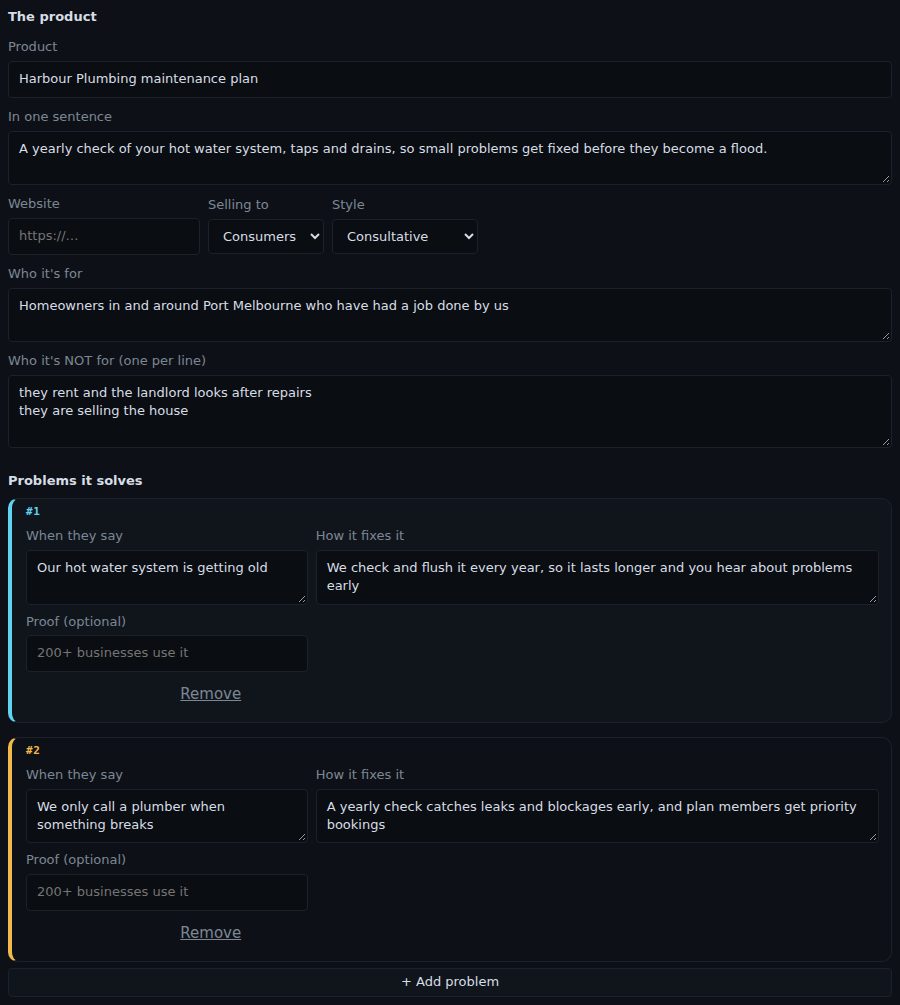
- The product
- The product's name, a one-sentence pitch, your website, whether you sell to businesses or consumers, the style (consultative, or a more assertive closer), who it's for and who it's not for.
- Problems it solves
- For each problem a customer might mention, how your product fixes it, with optional proof.
- Discovery questions
- Two to four questions the agent asks first. The answers decide which benefit it pitches.
- Approved proof points, Price, Competitors and Objection answers
- What the agent may say to back up the pitch: facts you're happy to stand behind, your price and payment options (leave the price empty if you only give quotes), the most it may discount, a current special and when it ends, your honest edge over competitors, and how to answer common objections.
- Next step
- Whether the agent books a meeting (how long, with whom, how, and the days and hours it can book) or takes a quote request (and what details to collect).
- Compliance
- Things the agent must say, such as "prices exclude GST", and things it must never say or imply.
Use Download offer (JSON) to keep a copy or reuse it on another agent with Upload offer. Remove the offer stops the agent selling.
Looking things up in your own systems
On the Tools tab you can let the agent use your own business system during a call, for example to tell a caller where their order is up to, or to add a delivery note to a job. Each tool says when the agent should use it and what it needs to ask the caller (such as an order number). Your system answers, and the agent tells the caller in its own words.
Tools need a connection to your system, which your IT person or software provider sets up in Settings → Integrations. Once it's there, a role may show Suggested for this role tools you can add with one click, then press Test on a tool to try it before you save. If you don't have a system to connect, your agent works fine without tools. Contact Binary Elements if you'd like help connecting one.