 BE VOICE
Your phone system
Set up voicemail and listen to messages
A mailbox has its own greeting, keeps its own messages and can email each new one to the right people. Harbour Plumbing has one called After hours; a bigger business might have one for Sales and one for Accounts.
How to create a mailbox
- Open Voicemail → + New mailbox.
- Give it a Name, such as "After hours".
- Choose a Greeting: the standard one ("please leave a message after the tone"), one of your recordings, or Upload a recording… to add a new one.
- Set the Longest message (seconds), or leave it empty for 2 minutes.
- Under Email new messages to, type who should get each new message by email.
- Leave Attach the recording to the email ticked to get the message as an audio file in the email.
- Click Save.
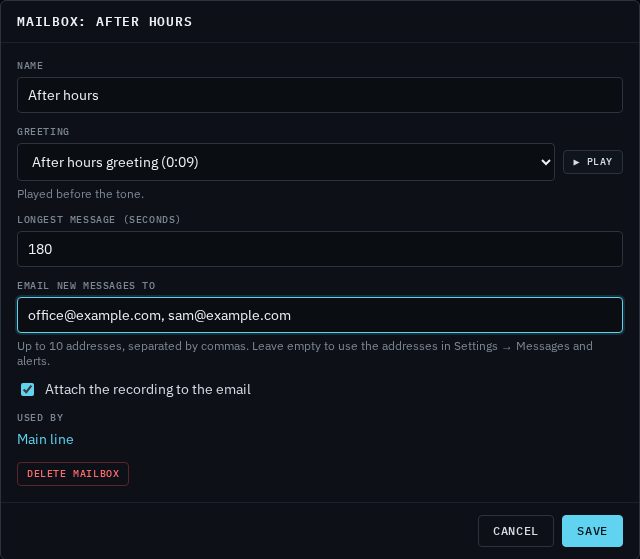
A new mailbox doesn't get any calls until you add it to your routing (below).
Options explained
- Greeting
- What the caller hears before the tone. Your own recording (for example "You've reached Harbour Plumbing after hours. Leave your name, number and address and we'll call you first thing") tells callers they're in the right place. Recordings are MP3 or WAV files, up to 20 MB.
- Longest message (seconds)
- When a message reaches this length, the recording stops. 10 to 300 seconds; 120 if you leave it empty.
- Email new messages to
- Up to 10 email addresses, separated by commas. These people get every message left in this mailbox. Leave it empty to use the addresses in Settings → Messages and alerts instead (if voicemail emails are switched on there); see Messages and alerts.
- Attach the recording to the email
- Sends the message's audio with the email, so you can listen on your phone. A very long recording may be too big to attach; the email then says to listen in BE Voice.
How to send callers to voicemail
- Open Routing.
- Drag Voicemail onto the canvas, or drag a wire from a step's dot to empty space and choose Voicemail.
- In the side panel, choose the Mailbox.
- Connect it: from a rule (such as your Christmas closure), from a menu key, or as the last "if nobody answers" step after a ring group or queue.
- Publish.
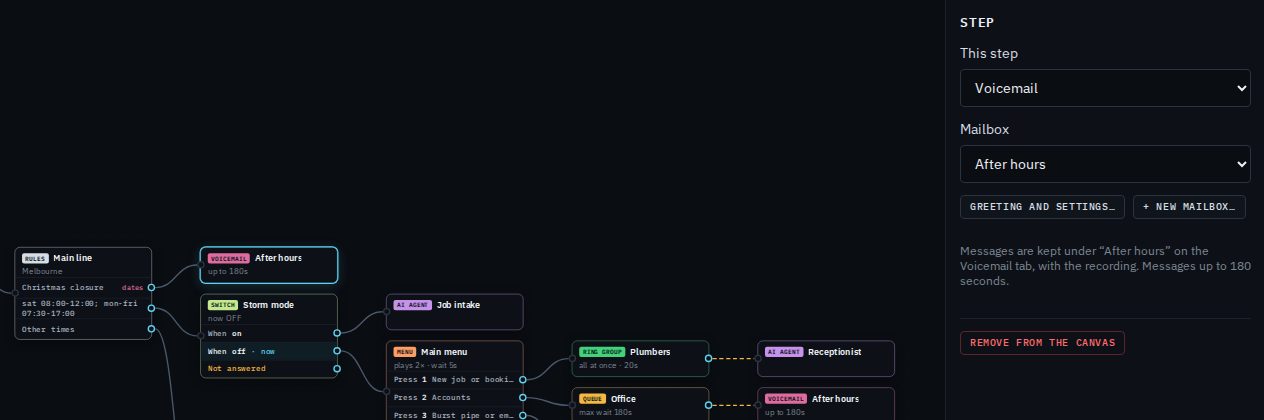
Voicemail always takes the call, so nothing can follow it on the canvas. If you choose No mailbox, messages go to the Messages tab instead, and you set the greeting and longest message in the step itself.
How to listen to your messages
- Open Voicemail. The tab shows how many new messages are waiting.
- Click a mailbox in the list. Its messages are shown underneath.
- Press play under Listen, or click Download to save the recording.
- Call the person back, then click Mark done. Done messages move out of New; Reopen brings one back.
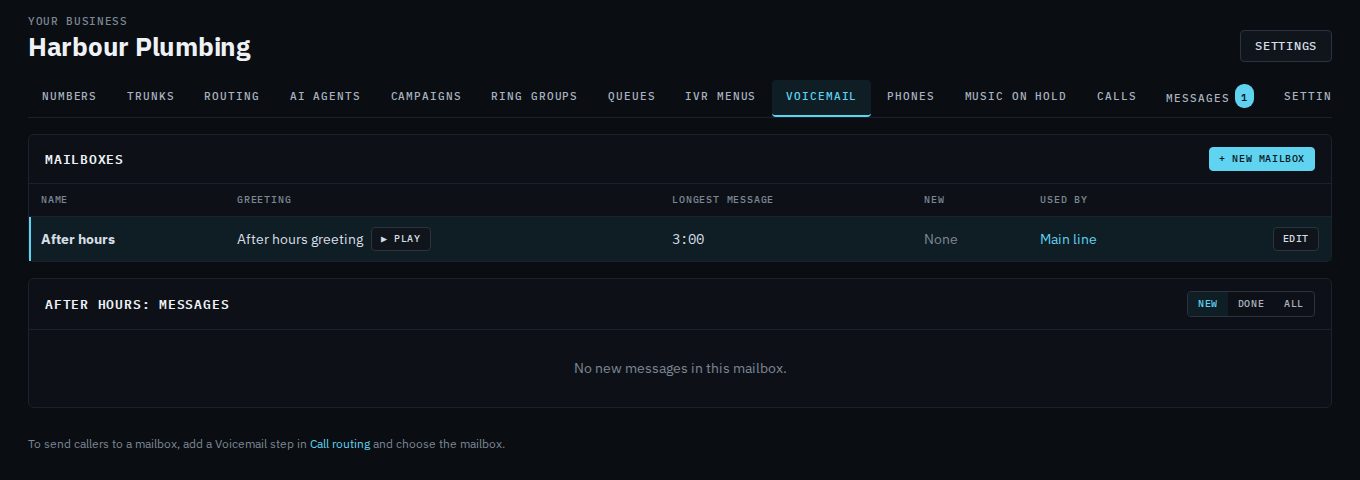
Each message shows when it was received, the caller's number and how long it is. Use New, Done and All to filter. New messages appear without reloading the page. Voicemail also shows on the Messages tab, with messages the AI agent takes; see Messages.
Changing or deleting a mailbox
Click Edit next to a mailbox, or Greeting and settings… on the canvas. Changes apply from the next call, with no publishing. Delete mailbox is at the bottom of the window; its messages stay on the Messages tab. A mailbox your live call routing uses can't be deleted: take it out of the routing and publish first.