 BE VOICE
Phone system
Phones and extensions
Every person or desk that takes calls needs a phone in BE Voice. Each phone has an extension number, like 101, that calls are sent to and that colleagues dial to reach it.
The Phones tab has two lists:
- Users
- Staff who use the web phone: a phone in their web browser. They sign in with their own email address and password, and their phones ring there.
- Phones
- Every extension in your business, whether it's a desk phone, a phone app or a web phone.
Add a phone
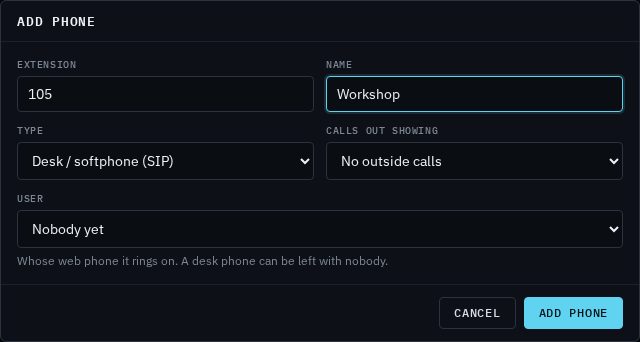
- Open Phones → + Add phone.
- Type an Extension: 2 to 6 digits, for example 105. Each extension can only be used once in your business.
- Type a Name people will recognise, such as "Front desk" or "Sam".
- Choose the Type: Browser (web phone) or Desk / softphone (SIP). See Which type? below.
- Choose Calls out showing: the number people see when this phone makes an outside call.
- For a web phone, choose the User it belongs to. A desk phone can be left with Nobody yet.
- Click Add phone.
What happens next depends on the type:
- Desk phone or phone app: a box shows the phone's sign-in details. Give them to the person setting up the phone. You can see them again any time with Sign-in details next to the phone. See Signing in on a desk phone or phone app.
- Web phone with a user: nothing to hand out. The phone rings on that person's web phone when they sign in.
- Web phone with nobody yet: attach it to a user before it can be used. See Web phone users.
Options explained
- Extension
- What colleagues dial to reach this phone, and what you pick in ring groups, queues and call routing. 2 to 6 digits. 000, 112 and 106 can't be used.
- Name
- Shown next to the extension everywhere in the console, so you can tell phones apart.
- Type
- Browser (web phone) rings in a web browser for the person it's attached to. Desk / softphone (SIP) is for a desk phone or a phone app that you set up with a server, username and password.
- Calls out showing
- The caller ID for outside calls from this phone. Pick one of your numbers, or No outside calls if the phone should only call other extensions. Only numbers allowed as caller ID are listed; contact us if yours is missing. See Your numbers.
- User
- The person whose web phone this phone rings on. A phone belongs to one user at a time.
Which type?
- Browser (web phone)
- Best for most staff. Nothing to set up: they sign in with their email and password and take calls on their computer with a headset. It rings while the web phone is open.
- Desk / softphone (SIP)
- For a physical desk phone, or a phone app on a computer or mobile that asks for a server, username and password.
Signing in on a desk phone or phone app
When you add a desk phone (or make it a new password), the console shows these details. Sign-in details next to the phone shows them again:
- SIP server
- The address the phone connects to, followed by the port (5060). Your phone may call this the registrar, proxy or host. Choose TCP as the transport where the phone asks; UDP works too.
- SIP username
- The extension followed by a short random code, for example 105-k7m3xq9p. Type it exactly, in every box the phone has for a name: user name, register name, authentication name. People still dial just 105 to reach the phone.
- Password
- The phone's password.
- SIP domain / realm
- If the phone has a separate domain or realm box, put this there and keep the SIP server as the host or proxy. If it has only one address box, use the SIP server.
Web phone users
A user is a staff member who signs in to the web phone. The address of the web phone is shown at the top of the Users list.
- Open Phones → + Add user.
- Type their Name and Email. The email is what they sign in with.
- Choose a Password of at least 12 characters. Give it to them privately.
- Under Phones, tick each phone that should ring for them.
- Click Add user.
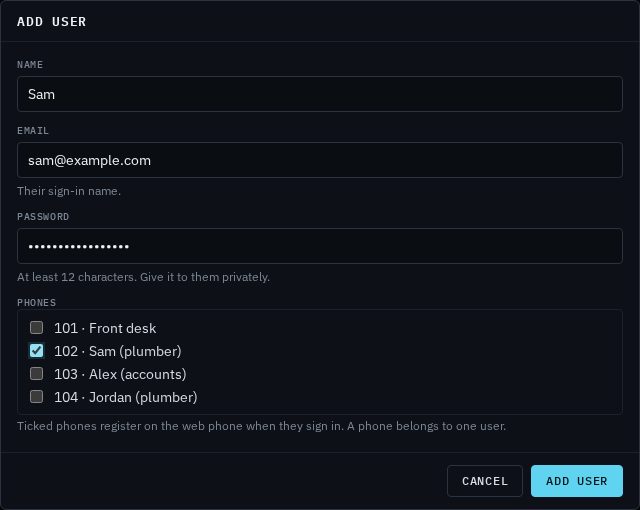
The person then opens the web phone, signs in with their email and password, and every phone ticked for them rings there. The Last sign-in column shows when they last signed in.
- Change their phones, name or password: click Edit. Leave New password (optional) empty to keep their password. Setting a new one signs them out everywhere.
- Remove someone: click Delete next to them. They're signed out and can't sign in again. Their phones stay, with nobody attached.
The Phones list
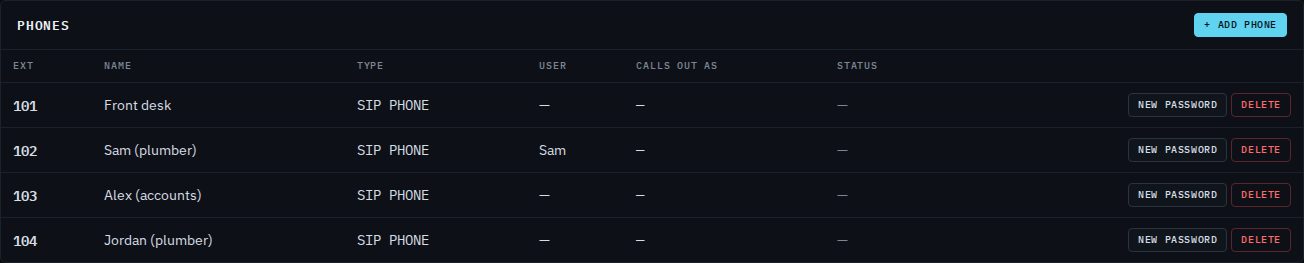
- Type
- Browser for a web phone, SIP phone for a desk phone or phone app.
- User
- Whose web phone it rings on, if anyone's.
- Calls out as
- The caller ID for outside calls. A dash means the phone can't make outside calls.
- Status
- Online when the phone is signed in and can ring, On a call while it's talking, Offline when it isn't signed in. The list updates by itself. An offline phone doesn't ring, so ring groups and queues skip it.
Hold and transfer
Phones work the way staff expect, whatever they're on. Calls between extensions, to outside numbers and from your numbers all go through BE Voice, so hold music, recording and the call log carry on through a transfer.
- On a desk phone
- Use the phone's own Hold and Transfer keys. Transfer to a colleague by dialling their extension, or to an outside number. Both kinds of transfer work: hand the call over straight away, or speak to the colleague first and then complete the transfer. The caller hears your hold music while they wait.
- On the web phone
- While on a call, click Hold to put the caller on hold and again to resume. Click Transfer and type an extension or a number to hand the call over. To speak to the colleague first, call them while the first caller is on hold, then complete the transfer.
- Who's free
- The web phone's Team list shows every colleague's extension and whether they're Available, On a call or Not signed in, and updates as calls start and end. The Phones tab in the console shows the same.
Change or remove a phone
- Name or caller ID: click Edit.
- New sign-in details: click New password and confirm. See above.
- Move a web phone to someone else: edit the users, untick it for one person and tick it for the other.
- Remove a phone: click Delete and confirm. It stops working straight away.
To change a phone's name or the number it shows on outside calls, click Edit next to it. The extension itself can't be changed: add a new phone instead.