 BE VOICE
AI agents
Let your agent put callers through
Transfers are the people, teams and numbers your agent can put a caller through to, and when it should. You can also have it ask the person first, or hand the call to another AI agent along with what it has already learnt.
How to add a transfer
- Open AI agents, pick the agent, and open the Transfers tab.
- Press + Add transfer.
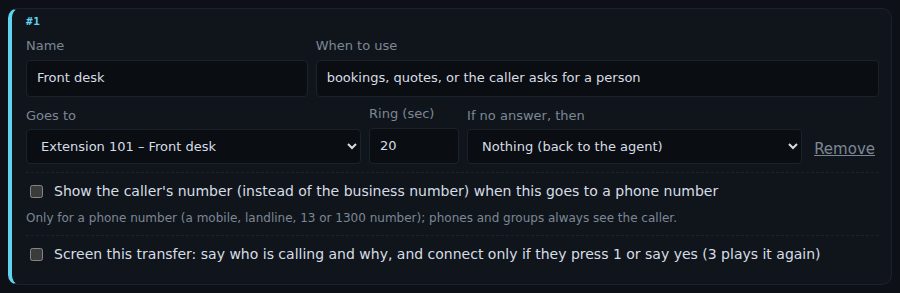
- Give it a Name the caller would understand, for example "Front desk" or "Accounts".
- In When to use, say when the agent should use it, for example "bookings, quotes, or the caller asks for a person".
- Choose where it Goes to, and how long to ring in Ring (sec).
- Optionally choose If no answer, then: a second place to try.
- Press Save.
Transfer options explained
- Name
- What the agent calls this transfer, and what it tells the caller ("I'll put you through to the front desk"). Use the same name in your instructions if you mention it there.
- When to use
- The situations this transfer is for, in a few words. Be specific: "a plumbing emergency: burst pipe, flooding, no water" works better than "urgent". If two transfers could both fit, make the difference clear.
- Goes to
-
- An extension: one of your phones, for example "Extension 101 – Front desk".
- A ring group: rings a team. See Ring groups.
- A queue: the caller waits in line for the next person free. See Queues.
- An AI agent: another of your agents takes over the call. See Handing a call to another AI agent.
- A phone number…: a mobile or landline, a 13, 1300 or 1800 number, or a short number. Type it in the box that appears, for example 0400 000 000.
- Ring (sec)
- How long to ring before giving up: 5 to 120 seconds, 20 if you don't change it.
- If no answer, then
- A second place to try if nobody answers the first, for example a mobile after the office phone. "Nothing (back to the agent)" means the caller goes straight back to the agent.
What happens if nobody answers
If neither place answers (or someone declines a screened call), the caller comes back to the agent, which is told the transfer didn't work. With the starting instructions, it then offers to take a message. If you want something else, such as offering a call back, say so in the agent's Instructions.
Showing the caller's number on a mobile
When a transfer goes to a phone number, the person answering normally sees your business number. Tick Show the caller's number (instead of the business number) when this goes to a phone number to show the caller's own number instead, so they know who it is before they answer.
- It only applies to phone numbers. Your own phones, ring groups and queues always see the caller's number anyway.
- It only works if your phone line allows calls to show other numbers as caller ID. If it doesn't, the person sees your business number. If such calls fail to connect, untick the box.
- If the caller has hidden their number, your business number is shown.
Screening: ask before putting the call through
With screening on, the agent puts the caller on hold and rings the person first. When they answer, they hear who is calling and why, and choose whether to take the call. This stops a mobile's voicemail from picking up your caller, and lets the person decline when they're busy.
- On the transfer, tick Screen this transfer.
- Leave Announcement empty to use the standard one, or write your own. Use the Insert: buttons to add the caller's name, company, reason or number.
- Set Wait for an answer (sec): how long the person has to decide (5 to 30 seconds, 10 if you don't change it).
- Choose what the caller hears meanwhile under Caller hears meanwhile.
- Press ▶ Hear announcement to hear an example, then Save.
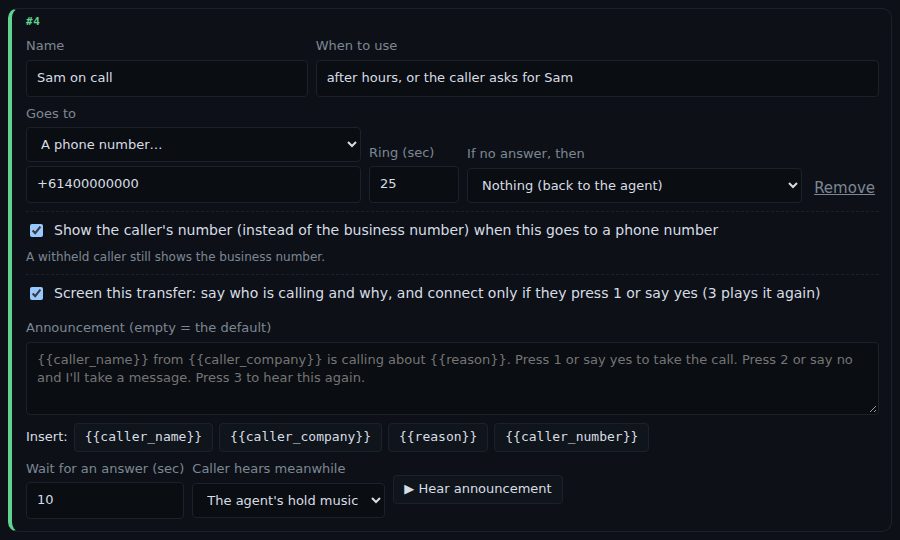
The standard announcement says, for example: "Jordan from Example Pty Ltd is calling about a blocked drain. Press 1 or say yes to take the call. Press 2 or say no and I'll take a message. Press 3 to hear this again." Details the caller didn't give are left out.
- The person presses 1 or says yes
- They're connected to the caller.
- They press 2, say no, or don't answer in time
- The agent tries If no answer, then if you set one, or goes back to the caller, who can leave a message.
- They press 3
- The announcement plays again.
Handing a call to another AI agent
A transfer can go to another of your AI agents. The caller hears it ring for a moment, then the second agent picks up on the same call and carries on. The first agent passes on the details you ask for, so the caller doesn't have to repeat themselves.
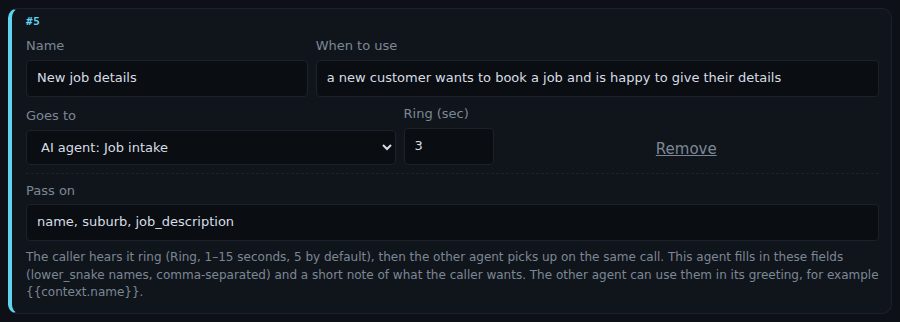
- Add a transfer and choose the agent under Goes to, for example "AI agent: Job intake".
- Set Ring (sec): how long the caller hears ringing before the other agent answers (1 to 15 seconds, 5 if you don't change it).
- In Pass on, list the details to hand over, separated by commas, for example
name, suburb, job_description. Use lower-case words joined with underscores. - Press Save.
- What the second agent knows
- The details listed in Pass on, as the first agent heard them, plus a short note of what the caller wants and which agent handed it over. It also has its own greeting, instructions, knowledge, voice and transfers.
- Using what was passed on in the greeting
- The second agent's greeting can use the details as placeholders. If you pass on
name, a greeting like "Hi {{context.name}}, I'll take down the job details" uses the caller's name. If the first agent didn't get a detail, the placeholder is left empty, so write a greeting that still makes sense without it. - One call, one record
- The whole conversation, with both agents, is one call in your Calls list, with one transcript.
What callers hear while waiting
While a screened transfer rings, the caller hears the music you chose under Caller hears meanwhile, or the agent's own hold music, which you set on the agent's Voice and music tab. See Hold music and Music on hold.