 BE VOICE
Settings
Who can sign in
Two kinds of people sign in to BE Voice: admins, who manage your business's phones in the console, and web phone users, who make and take calls in their browser. This page covers both, and what to do when a password is forgotten.
Admins: people who manage your business
An admin signs in to the BE Voice console with their email address and password. They can see and change everything for your business: numbers and call routing, AI agents, campaigns, ring groups, queues, menus, voicemail, phones, music on hold, calls, messages and settings. Every admin has the same access, and admins see only your business, never anyone else's.
If one person looks after more than one business, they get a single sign-in and a list at the top of the console to switch between businesses.
Adding or removing an admin
Admins are added and removed by us, so you always know who has access. To give a colleague access, contact us with their name and email address. To take someone's access away, for example when they leave, contact us and we'll remove them straight away: they're signed out and can't sign in again.
The invitation email
When we add someone, they get an email from BE Voice with the subject "You're invited to BE Voice".
- Open the email and click Choose a password.
- The console opens with a Welcome page showing the email address they'll sign in with.
- Type a password of at least 12 characters in Password, and again in Password again.
- Click Save password, then sign in with the email address and the new password.
The link works once and stops working after 7 days. If it has expired, ask us to send a new invitation, or use Forgot your password? on the sign-in page (below).
Signing in
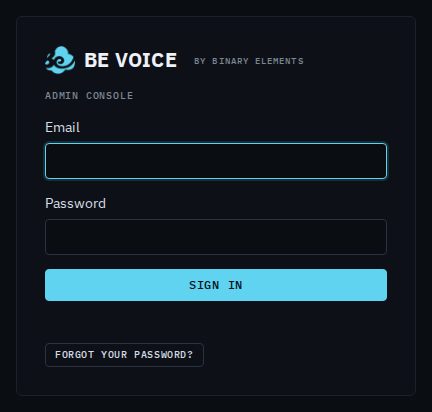
Type your email address and password and click Sign in. The console opens on your business's Numbers tab. Click Sign out at the top when you're finished on a shared computer.
How to change your password
- Open Settings → Business.
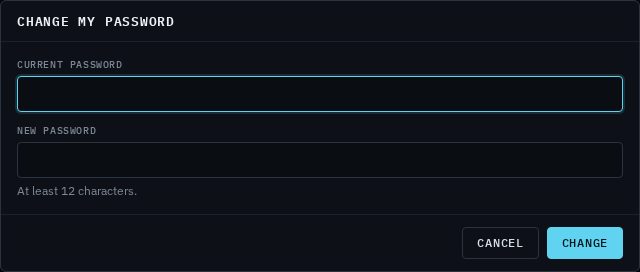
- Click Change my password.
- Type your Current password and your New password (at least 12 characters).
- Click Change. You'll see "Password changed."
If you forget your password
- On the sign-in page, click Forgot your password?
- Type your email address and click Email me a link.
- Open the email "Reset your BE Voice password" and click Choose a new password.
- Type a new password of at least 12 characters twice and click Save password.
- Sign in with your new password.
The reset link works once, for one hour. If it has expired, the page asks for your email address again so you can get a fresh one. If you didn't ask for a reset, ignore the email: your password hasn't changed.
Web phone users
Your staff don't need an admin sign-in to make and take calls. Instead, add them as users on the Phones tab: they sign in to the web phone with their own email address and password, and the extensions you choose for them ring in their browser. Web phone users can't open the console or change any settings.
- Open the Phones tab and click + Add user in the Users panel.
- Fill in their Name and Email, and a Password of at least 12 characters. Give them the password privately.
- Under Phones, tick the extensions that should ring for them, for example 102. An extension belongs to one user at a time.
- Click Add user. The Users panel shows the web phone address to send them to.
- Changing their phones
- Click Edit next to the user and tick or untick extensions.
- A forgotten web phone password
- Click Edit, type a New password and click Save. This signs them out everywhere, so give them the new password. Once signed in, users can change their own password in the web phone.
- Someone leaves
- Click Delete next to the user. They're signed out and can't sign in again. Their extensions stay, ready to give to someone else.
More about extensions and the web phone in Phones and extensions.