 BE VOICE
Campaigns
Set up a campaign
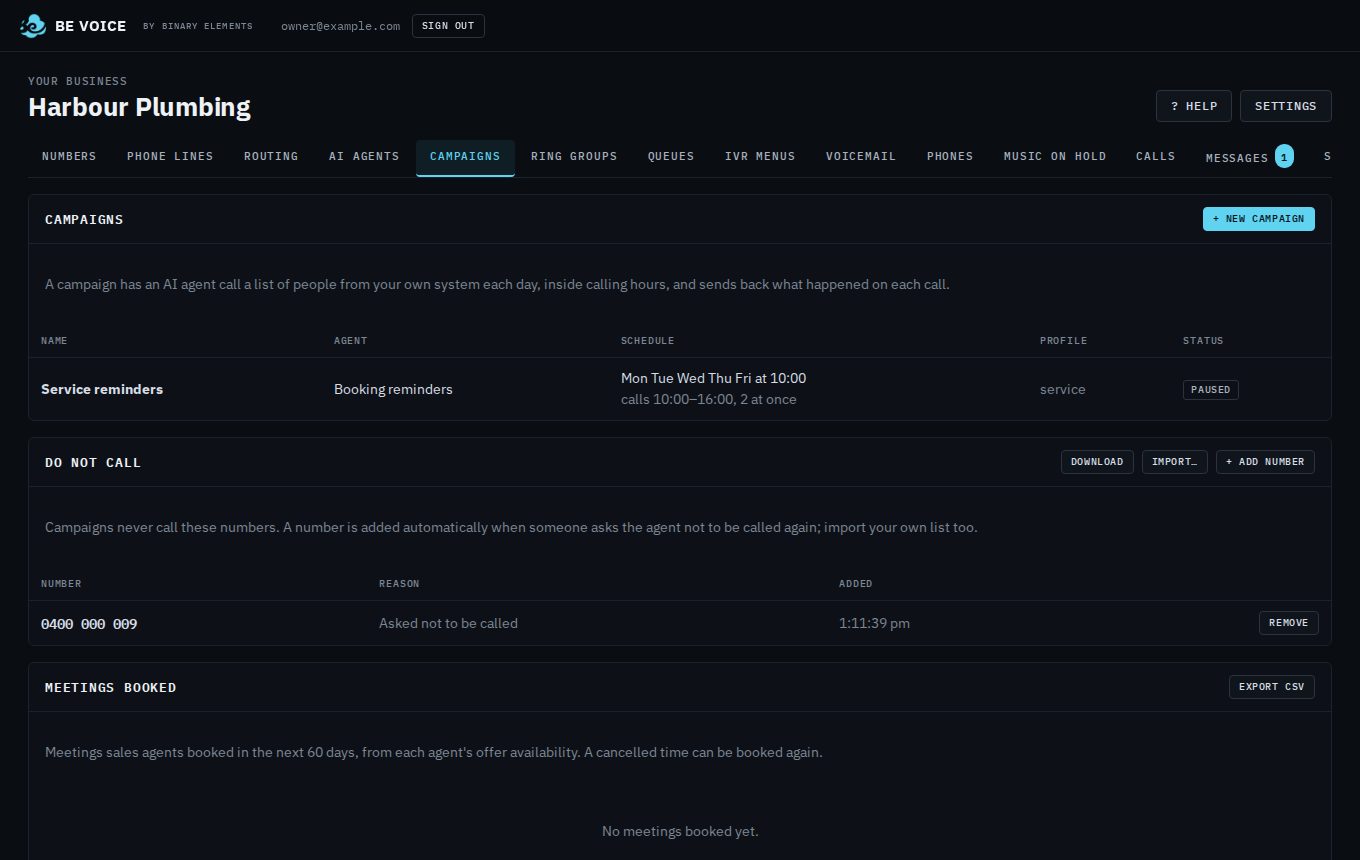
A campaign has one of your AI agents call a list of people for you: appointment reminders, overdue accounts, follow-ups. It calls on the days and at the times you choose, stays inside the legal calling hours, and records what happened on every call.
Before you start
A campaign needs two things. If one is missing, the console tells you when you click + New campaign.
- An AI agent to make the calls. Set one up in the AI agents tab first, for example a booking reminders or accounts agent. See AI agents.
- A number the calls come from. This is the number people see when the agent calls them, and the number they'll ring if they call back. See Your numbers.
How to create a campaign
- Open Campaigns → + New campaign.
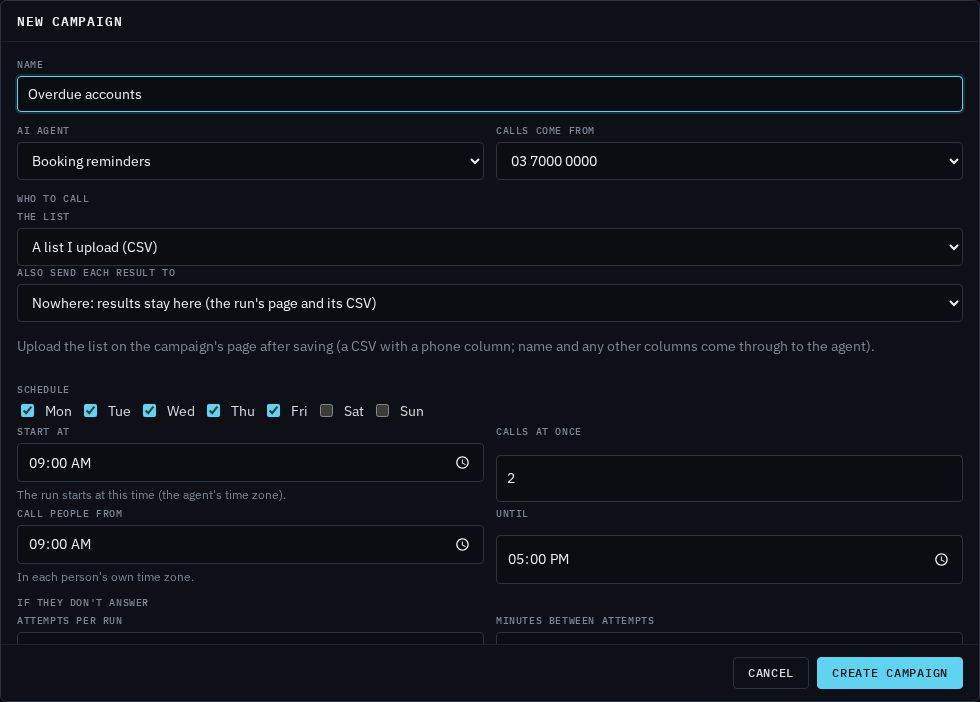
- Give it a Name you'll recognise, such as Service reminders or Overdue accounts.
- Choose the AI agent that makes the calls, and the number the Calls come from.
- Under Who to call, choose A list I upload (CSV). (If you've connected your own system, you can choose to have it send the list instead.)
- Set the Schedule: the days it runs, when each run starts, how many calls at once, and the calling window.
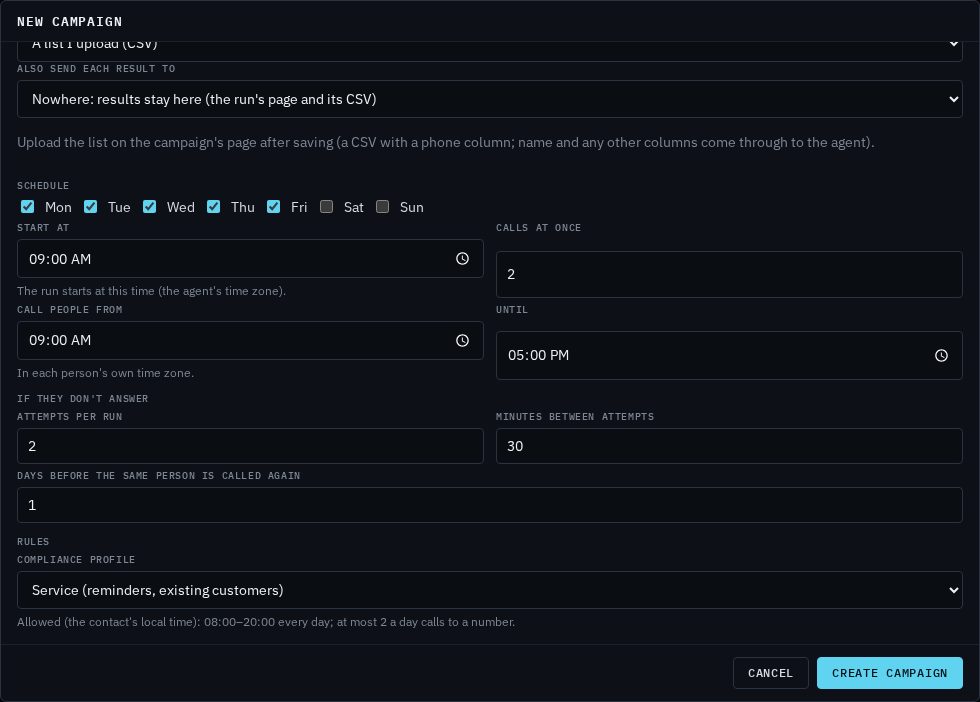
- Set If they don't answer: how many attempts, how far apart, and how many days before the same person is called again.
- Choose the Compliance profile under Rules, then click Create campaign.
- On the campaign's page, upload your contact list. See Contact lists.
- Click Test run… to try it on your own mobile, then click Turn on when you're happy.
Options explained
- AI agent
- Which of your AI agents makes the calls. The agent's script decides what it says, which questions it asks and what outcomes it records.
- Calls come from
- The number shown to the people you call. Only your numbers that are allowed to be shown as caller ID appear here.
- Schedule (days)
- Tick the days the campaign runs. Each of those days, a new run starts and works through the list.
- Start at
- The time each run starts. The time zone it uses is shown underneath.
- Calls at once
- The pace: how many people the agent calls at the same time, from 1 to 10. Start low (the default is 2) so call-backs don't all arrive at once.
- Call people from … Until
- The calling window, in each person's own time zone. Nobody is called outside it. Anyone the run hasn't reached when the window closes is marked as not called, and the next run tries them again.
- Attempts per run
- How many times to try someone who doesn't answer, in one run (1 to 5).
- Minutes between attempts
- How long to wait before trying again (at least 10 minutes).
- Days before the same person is called again
- Stops the same number being called on back-to-back runs. For example, 7 means someone called on Monday isn't called again until the following Monday. Use 0 to allow a call every run.
- Compliance profile
- Which set of calling rules the campaign follows. The hint underneath shows the hours and limits it allows. See below.
Calling profiles: which one to choose
Australian rules say when you may call people and how often, depending on why you're calling. Each profile sets those limits, in the person's own local time. Your calling window can be narrower than the profile's hours, but never wider: if your window runs past what the profile allows, calls stop at the profile's limit.
- Service (reminders, existing customers)
- For calls to people who already deal with you: appointment and service reminders, confirmations, follow-ups. Calls between 8 am and 8 pm any day, and no more than 2 calls to the same number in a day.
- Debt collection
- For overdue accounts. Weekdays 7:30 am to 9 pm, weekends 9 am to 9 pm, and no more than 3 calls to a number in a week and 10 in 30 days. The agent checks it's talking to the right person before it mentions the account.
- Telemarketing (selling)
- For sales calls. Weekdays 9 am to 8 pm, Saturdays 9 am to 5 pm, never on Sundays; 1 call a day and 4 a month to a number. Before it can call your list, you must declare you have permission to call it. See Permission to call.
When you create a campaign you can leave the profile on From the agent's role: an accounts agent uses Debt collection, and other agents use Service. Read more on our Calling within the rules page.
The campaign's page
Click a campaign in the list to open its page. The top shows its settings in a sentence each, and the buttons to run it.

- Settings
- Opens the same form you filled in, to change anything. Delete campaign is at the bottom of the form. Deleting removes the campaign and its run history.
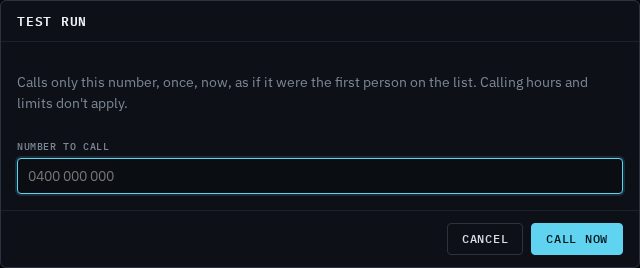
- Test run…
- Calls one number you type in, once, straight away, as if it were the first person on the list. Calling hours and limits don't apply, and it works while the campaign is paused. Use your own mobile to hear exactly what your customers will hear.
- Run now
- Starts a run straight away instead of waiting for the next scheduled one. It still calls only inside calling hours. If the campaign is paused, the run waits until you turn it on.
- Turn on / Pause
- While a campaign is Active, it runs by itself on its schedule. Pause stops new calls straight away; calls already in progress finish normally.
Only one run can happen at a time, so Test run… and Run now are greyed out while a run is going.
How to stop a run
- Open the campaign and click the run in the Runs list.
- Click Stop, then confirm.
No more calls are made in that run. Calls already in progress finish, and their results are recorded. To stop future runs as well, click Pause on the campaign.