 BE VOICE
Settings
Get voicemail, messages and missed calls by email
Every voicemail and every message the AI agent takes lands on the Messages tab. Here you choose who also gets an email about it, and who hears about calls nobody answered.
How to set up email alerts
- Open Settings → Messages and alerts.
- In Send to, type the email addresses that should get alerts, separated by commas, for example
frontdesk@example.com, owner@example.com. You can add up to 10. - Tick Voicemail and messages to get an email for each voicemail and each message the AI agent takes.
- Tick Missed calls to get an email when a caller reached nobody.
- Click Save. The badge at the top of the panel changes to show where messages now go, for example "Messages go to: email".

Changes apply from the next call. To stop all emails, untick both boxes, or clear Send to, and click Save. Messages still appear on the Messages tab.
What each email looks like
- Voicemail
- Subject "Voicemail from 0400 000 000 (0:35)", or "Voicemail for After hours from …" when it was left in a named mailbox. It shows who called, the number they called, when, and how long the message is, with a Listen in BE Voice button. A mailbox can attach the recording too (see below).
- Message from the AI agent
- Subject "Message from" and the caller's name. It shows the agent's summary and each detail it wrote down, such as the caller's name, number and what they need, with an Open in BE Voice button.
- Missed call
- Subject "Missed call from 0400 000 000". It says which phones, ring groups or queues the call tried and for how long, or that the caller hung up while waiting, with a See the call in BE Voice button.
Times are shown in your business's time zone. Everyone on one list gets the same email and can see each other's addresses.
What counts as a missed call
A missed call is an incoming call that rang your phones, a ring group or a queue and reached nobody: no person answered, the AI agent didn't take it, and the caller didn't leave a voicemail. A caller who gives up while waiting in a queue, or whose queue wait runs out, counts as a missed call too.
Give a mailbox its own email addresses
The addresses in Settings are for your whole business. A voicemail mailbox can send its messages to different people instead, for example the After hours mailbox to the person on call.
- Open the Voicemail tab and click Edit next to the mailbox.
- In Email new messages to, type up to 10 addresses separated by commas.
- Leave Attach the recording to the email ticked to get the recording as an attachment, or untick it to get only the link.
- Click Save.
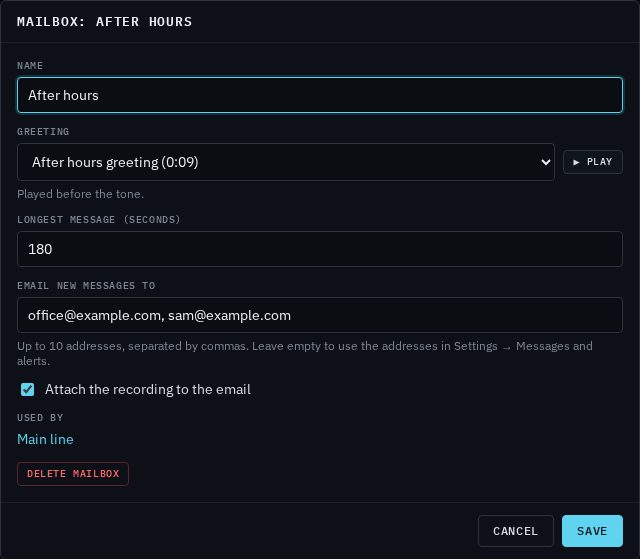
- Mailbox has its own addresses
- Its voicemails go to those addresses only, even if Voicemail and messages isn't ticked in Settings.
- Mailbox box left empty
- Its voicemails go to the addresses in Settings → Messages and alerts, if Voicemail and messages is ticked there.
Give an AI agent its own email addresses
In the same way, an AI agent can send the messages it takes to its own list. Open the agent on the AI agents tab and go to its Messages section. Fill in Email each message to and that agent's messages go there instead of to the business list. Leave it empty to use the addresses in Settings. See Messages, questions and outcomes.
Checking that emails arrive
The Messages and alerts settings don't have a test button for email. The easiest check is to call your number from a mobile at a time your calls go to voicemail (for example, after hours) and leave a short message. The email is sent once you hang up and should arrive within a minute or two. An AI agent's own addresses can be tested with the Send a test button next to Email each message to in the agent's Messages section.
If nothing arrives, check your spam or junk folder and add the sender to your contacts. If you see "Email isn't switched on for this service yet" under By email, your choices are saved and emails start as soon as we switch email on.
Sending messages to another system (webhook)
If your business uses another system to handle messages, such as a CRM, a helpdesk or an on-call alerting app, BE Voice can send each new voicemail and AI agent message to it as well. Put the address your developer or that app gives you in To a webhook, click Send a test to check it answers, then click Save. Email and the webhook are separate: you can use either, both or neither. Missed calls are only sent by email. Your developer can find the details on our developer pages.