 BE VOICE
Getting started
Finding your way around the console
The console is where you run your business's phones. Everything is on one page: your business at the top, a row of tabs, and the tab you're on underneath.

The header
- BE Voice
- Click it to go back to your first tab from anywhere.
- Your email address
- Shows who is signed in.
- Business switcher
- Only if you look after more than one business: a drop-down next to your email address. Pick a business and the console shows that business, on the same tab.
- Sign out
- Signs you out of the console on this computer. Do this on a shared computer.
Your business
Under the header, Your business shows your business name. On the right are two buttons:
- ? Help
- Opens the help centre at the guide for the tab you're on, in a new browser tab.
- Settings
- Opens your business settings: call recording, where messages and alerts are emailed, and connections to other systems. It's the same as the Settings tab. See Settings.
The tabs
Tabs are shown in capitals in the console. You only see the tabs for what your business has signed up for, so yours may be fewer than these.
- Numbers
- Your phone numbers and what answers each one. Your numbers
- Phone lines
- The lines your calls go in and out on. We set these up for you, or you can bring your own. See Phone lines.
- Routing
- What happens when someone calls: opening hours, holidays, who rings first and what happens if nobody answers. Call routing
- AI agents
- Your AI receptionists: what they say, what they know and who they can put callers through to. AI agents
- Campaigns
- Calls your AI agent makes to a list of customers, such as reminders. Campaigns
- Ring groups
- Several phones that ring for one call. Ring groups
- Queues
- Callers wait on hold until the next person is free. Queues
- IVR menus
- "Press 1 for…" menus. Menus
- Voicemail
- Mailboxes and the voicemails people leave. Voicemail
- Phones
- Extensions for your staff, and the people who use the web phone. Phones and extensions
- Music on hold
- What callers hear while they wait. Music on hold
- Calls
- Every call, with recordings and transcripts. Calls, recordings and transcripts
- Messages
- Messages your AI agent took from callers. Messages
- Settings
- Your business details, call recording, alerts and integrations. Settings
New messages and voicemails
A number next to a tab tells you something is waiting:
- Messages
- How many messages the AI agent has taken that nobody has dealt with yet.
- Voicemail
- How many new voicemails are waiting, across all your mailboxes.
The number goes down as you deal with each one. It updates when you move to another tab or reload the page.
Change your password
- Open Settings → Business.
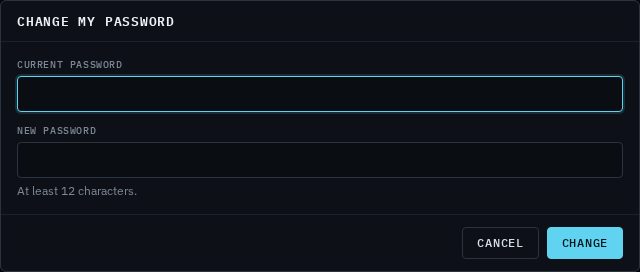
- Click Change my password.
- Type your current password, then your new one (at least 12 characters).
- Click Change. You'll see "Password changed."
Forgotten it? Sign out and use Forgot your password? on the sign-in page. See If you forget your password.
Sign out
Click Sign out at the top of the page. You're taken back to the sign-in page. Signing out of the console doesn't affect phone calls: your phones keep ringing and your AI agent keeps answering.