 BE VOICE
Your phone system
Decide where your calls go
Call routing is a picture of what happens when someone rings your business: which number they called, what time it is, and who or what answers. You draw it on the routing canvas, check it with a test trace, and publish it when you're happy.
What the canvas shows
Open Routing. A call travels from left to right:
- Number: one of your phone numbers, such as 03 7000 0000. A number with nothing after it shows Not answered.
- Rules by time: a set of rules that splits calls by when they arrive, for example open hours, holidays and Other times. Each rule has its own dot on the right. See Opening hours, holidays and switches.
- Steps: what happens to the call. A step can ring a ring group, put the caller in a queue, hand them to an AI agent, play a menu, take a voicemail and more. Every kind is explained in Routing steps.
The box at the far left is the phone line your numbers come in on, Managed by us unless you brought your own (see Phone lines). There's nothing to set there on the canvas.
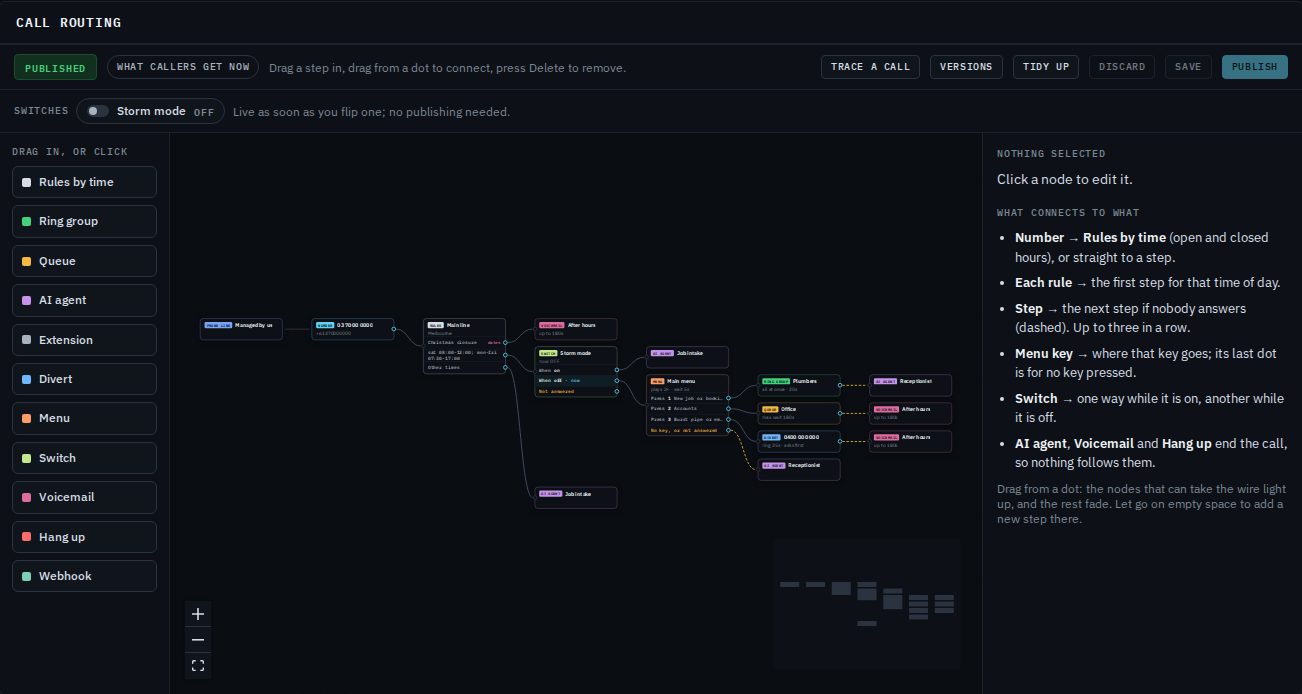
Across the top, the bar always tells you where you stand. Published with What callers get now means the canvas is exactly what callers get. As soon as you change something it says Not published and Draft, with how many changes you've made.
How to add a step
- In the palette on the left (Drag in, or click), drag a step onto the canvas, or click it to drop it in the middle of the view.
- Click the new step. The side panel on the right opens with its settings, for example which ring group, and how long to ring.
- Connect it: drag from the dot on the right of the box that comes before it (a rule, a menu key, or another step) and let go on the new step.
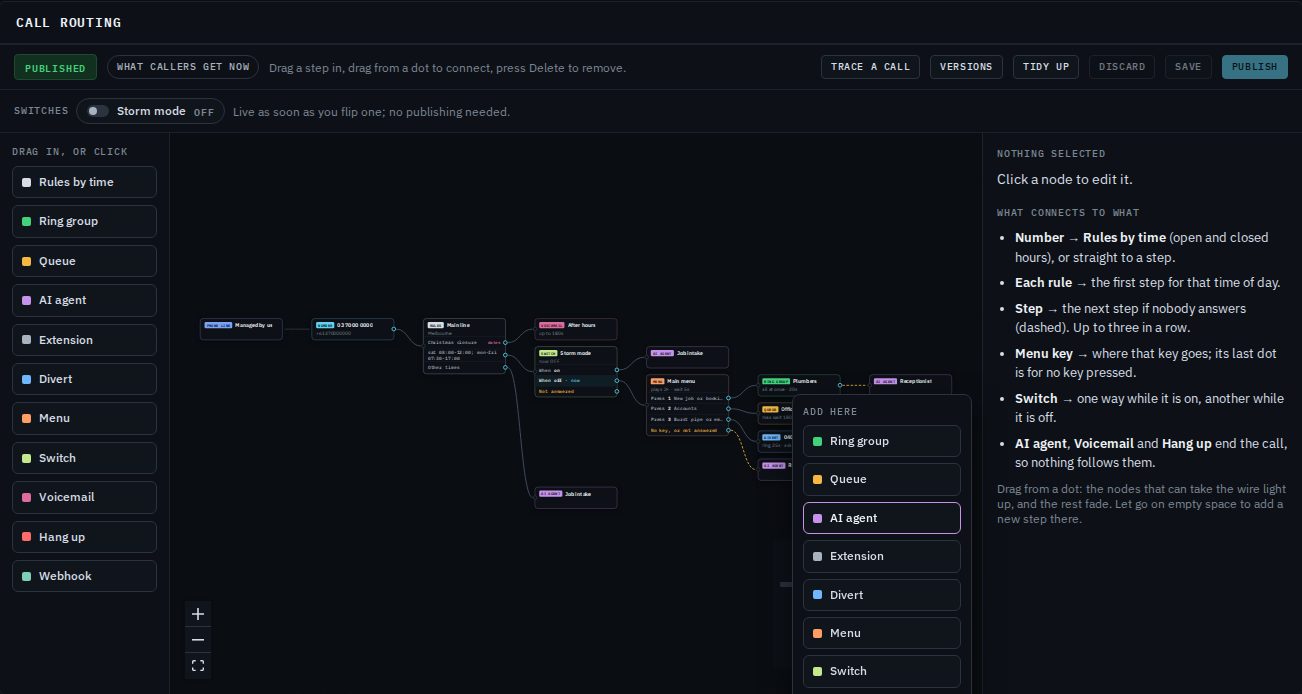
There's a quicker way too: drag a wire from a dot and let go on an empty part of the canvas. An Add here list appears; pick a step and it's added and connected in one go.
Connecting steps with wires
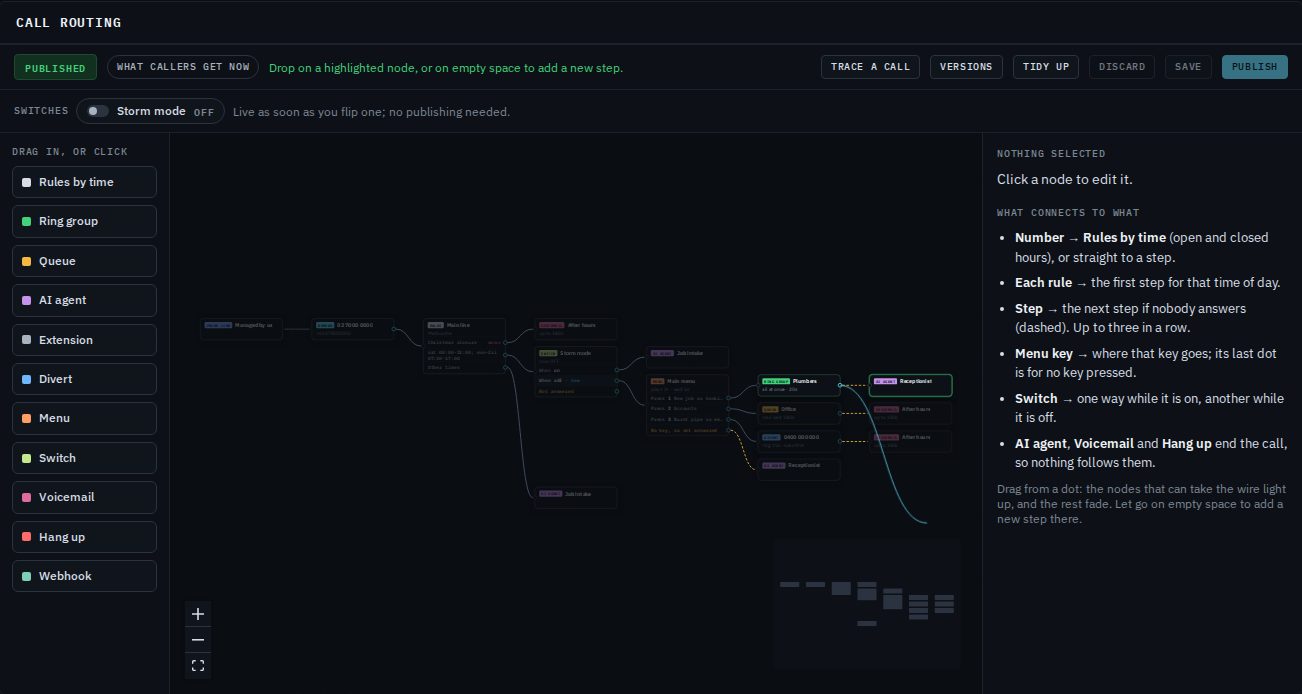
Drag from a dot to a box. While you drag, the boxes that can take the wire light up and the rest fade, so you can see where it may go. You can let go anywhere on a box, not only on its dot. A dot leads to one place, so drawing a new wire from a dot replaces its old one.
What can connect to what:
- A number goes to a set of Rules by time, or straight to a step if it's answered the same way at all hours.
- Each rule goes to the first step for that time.
- Each menu key goes to where that key sends the caller. See Menus.
- A switch goes one way while it's on and another while it's off.
- An AI agent, Voicemail or Hang up always takes the call, so nothing can follow them. That's why they have no dot on the right.
To remove a wire or a box, click it and press Delete (or Backspace). A selected box also has Remove from the canvas at the bottom of the side panel.
The dashed wire: "if nobody answers, then…"
A ring group, queue, extension or divert can go unanswered. The dot on its right leads to the step to try next, and that wire is drawn dashed. For example: ring the plumbers for 20 seconds, and if nobody picks up, the AI agent answers.
You can chain up to three steps in a row this way. If you need more, put a menu or a switch in between. If nobody answers the last step, the call ends, so it's a good idea to finish with an AI agent or voicemail.
Editing a step in the side panel
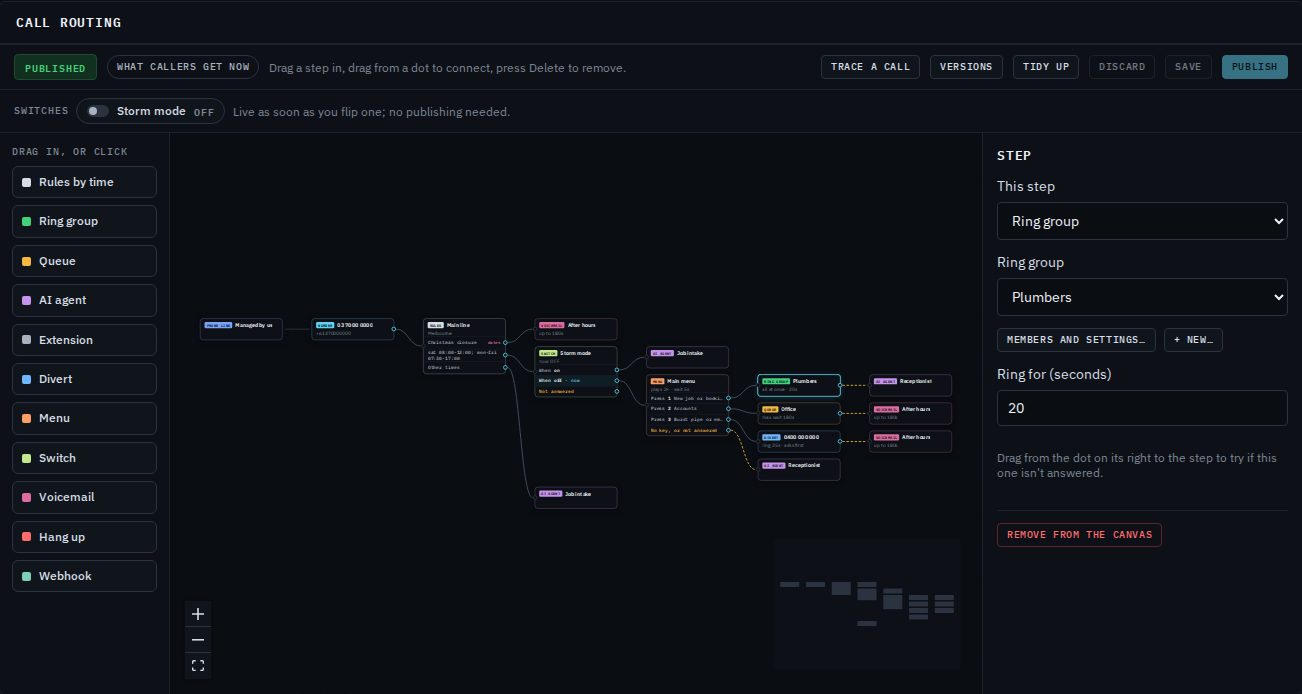
Click any box to open its settings on the right. This step at the top changes what kind of step it is; its wires stay wherever they still make sense. For a ring group or queue, Members and settings… opens the group or queue itself, and + New… creates one without leaving the canvas.
If something needs fixing, a list of problems appears above the canvas (for example "key 2 goes nowhere"), and you can't save or publish until they're fixed. A step that isn't wired to anything is pointed out too; it's dropped when you publish.
Trace a call before you publish
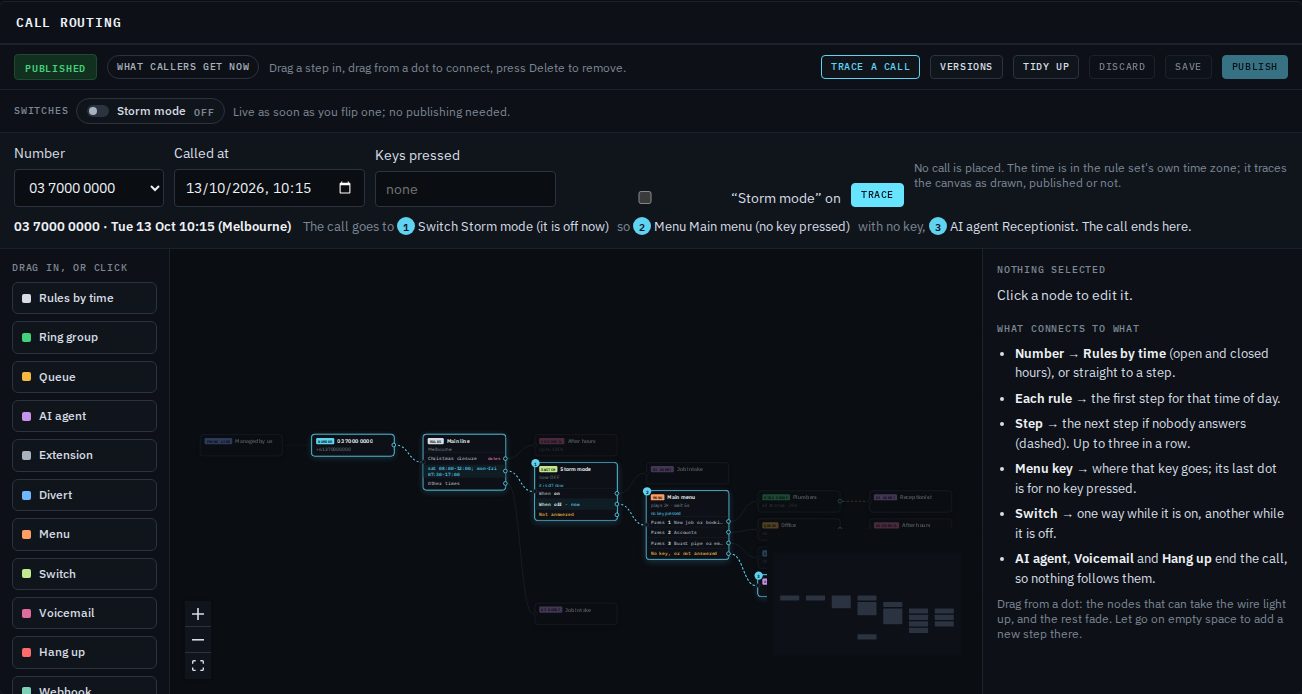
Trace a call shows what would happen to a call, without placing one. It works on the canvas as drawn, so you can check a change before you publish it.
- Click Trace a call in the bar.
- Choose the Number, set Called at to a day and time, and, if there's a menu, type the Keys pressed (for example 1).
- If you have switches, tick or untick each one to trace as if it were on or off. The switch itself isn't changed.
- Click Trace.
The path lights up on the canvas with numbered steps in the order the call would try them, and a sentence spells it out, such as "The call goes to 1 Ring group Plumbers (2 of 2 phones would ring) if not answered, 2 AI agent Receptionist." The time is in the rule set's own time zone.
Save, Publish and Discard

- Publish
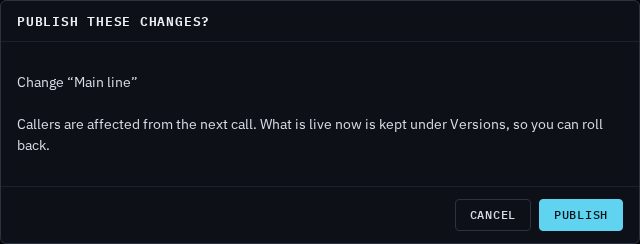
- Makes the canvas live. You're shown a list of what will change and asked to confirm. Callers get the new routing from their next call. What was live before is kept under Versions, so you can go back.
- Save
- Keeps your work without publishing it. The first time, you're asked to name the copy (for example "Christmas closure"). It's kept under Versions, and callers aren't affected. While you work on a copy the bar shows its name and whether it's saved, and Back to live returns you to the published routing.
- Discard
- Throws away your changes and puts the canvas back to what is live now.
- Tidy up
- Lays the boxes out neatly again. It only moves boxes; it doesn't change the routing. Where you place boxes is remembered for everyone who manages your business.
If you leave the Routing tab with changes that aren't saved or published, the console asks before you go.
Versions: go back to an earlier routing
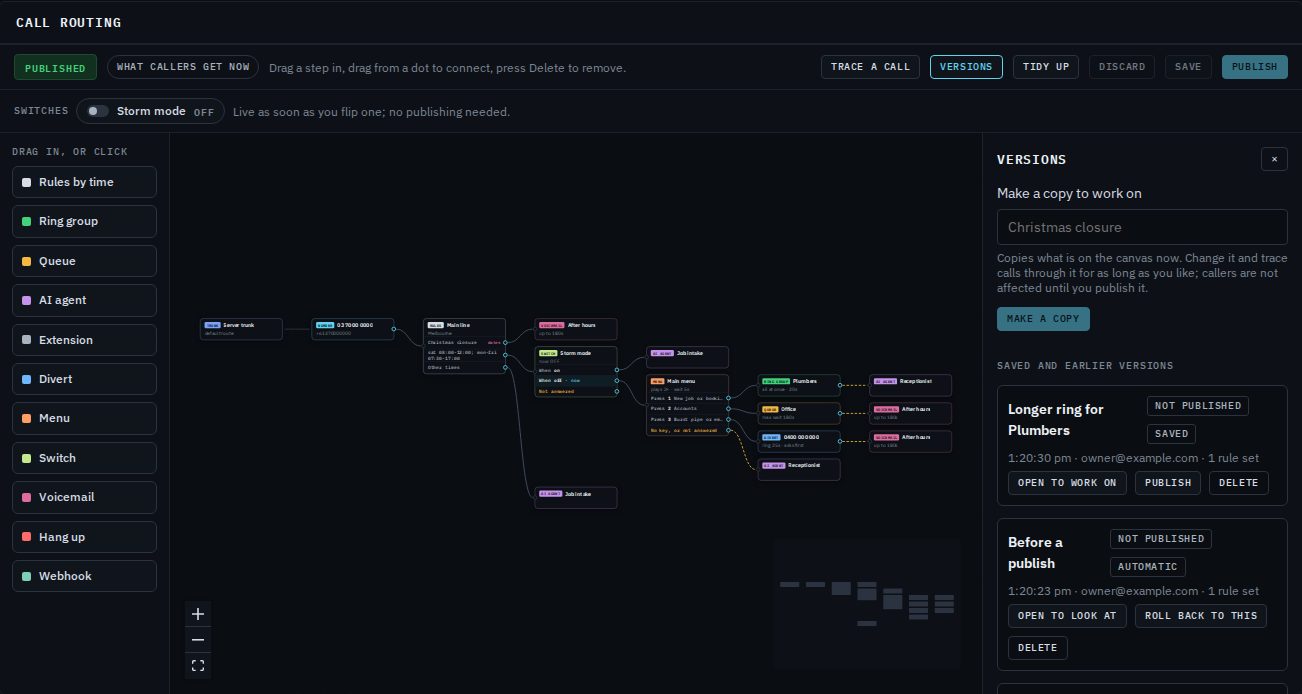
Click Versions to see saved copies and earlier routings.
- Automatic versions are made every time you publish: each one is the routing as it was just before. Click Open to look at to see it on the canvas and trace calls through it, or Roll back to this to make it live again (you're shown what will change first).
- Saved versions are copies you made with Save or Make a copy. Open to work on opens one on the canvas to change it; Publish makes it live.
- Delete removes a version. It doesn't change your routing.
Worked example: Harbour Plumbing's main line
Harbour Plumbing in Port Melbourne has one number, 03 7000 0000. They want the plumbers' phones to ring during the day, the AI agent to pick up if nobody can, and the after-hours agent to take down new jobs at night. They're closed on Christmas Day, Boxing Day and New Year's Day.
- Open Routing and drag Rules by time onto the canvas. Click it, name it "Main line" and leave the time zone on Melbourne.
- It starts with two rules: open hours and Other times. Set the hours to Monday to Friday 07:30–17:00, then + Add hours for Saturday 08:00–12:00.
- Click + Holiday dates. It's added at the top so it wins over the opening hours. Name it "Christmas closure" and add 25 December, 26 December and 1 January, each with Every year ticked.
- Drag a wire from the number 03 7000 0000 to the Main line box.
- From the open-hours rule's dot, drag to empty space and choose Ring group. In the side panel, pick Plumbers and set Ring for (seconds) to 20.
- From the Plumbers dot, drag to empty space and choose AI agent, then pick Receptionist. The dashed wire means "if nobody answers".
- Connect Other times to a new AI agent step with Job intake, and the Christmas closure rule to a Voicemail step with the After hours mailbox.
- Click Trace a call, pick a Tuesday morning and click Trace: the plumbers ring first, then the Receptionist. Try a Sunday and 25 December too.
- Click Publish and confirm.
Later, Harbour Plumbing added a "press 1 for a new job, 2 for accounts, 3 for a burst pipe" menu and a Storm mode switch. See how in Menus and switches.