 BE VOICE
For developers
Make calls from an AI assistant with MCP
BE Voice is a remote MCP server. Connect it to an AI assistant or agent framework that supports remote MCP servers (streamable HTTP), and the assistant can place real phone calls for you, follow them, give new instructions while they're on, and tell you how they went.
What it's for
You ask your assistant something like "call Sam on 0400 000 000 and confirm Friday's delivery", and it does the rest: it places the call through BE Voice, BE Voice's AI holds the conversation, and your assistant reads you the outcome. It's the same as the calls API, wrapped as tools an assistant can use.
How to connect your assistant
First check your account includes Calls through the API and MCP. If it doesn't, contact us. Then there are two ways to connect, depending on the app:
- Chat apps such as ChatGPT and Claude (on the web or the desktop app) sign in to BE Voice with your console login. There's no key to copy.
- Developer tools such as Claude Code, Cursor and VS Code use an API key.
Chat apps: connect by signing in
Claude (web and desktop)
- Open Settings → Connectors → Add custom connector.
- Give it a name, such as BE Voice, and enter the address
https://voice.binaryelements.com/mcp. - Click Add, then Connect. BE Voice opens in your browser: sign in and approve, as below.
ChatGPT
- In ChatGPT's settings, add a custom connector (an app) for an MCP server. Depending on your plan, it may be under Apps and connectors with developer mode switched on.
- Enter the address
https://voice.binaryelements.com/mcpand choose OAuth sign-in. - Create it, then connect. BE Voice opens in your browser: sign in and approve, as below.
Signing in and approving
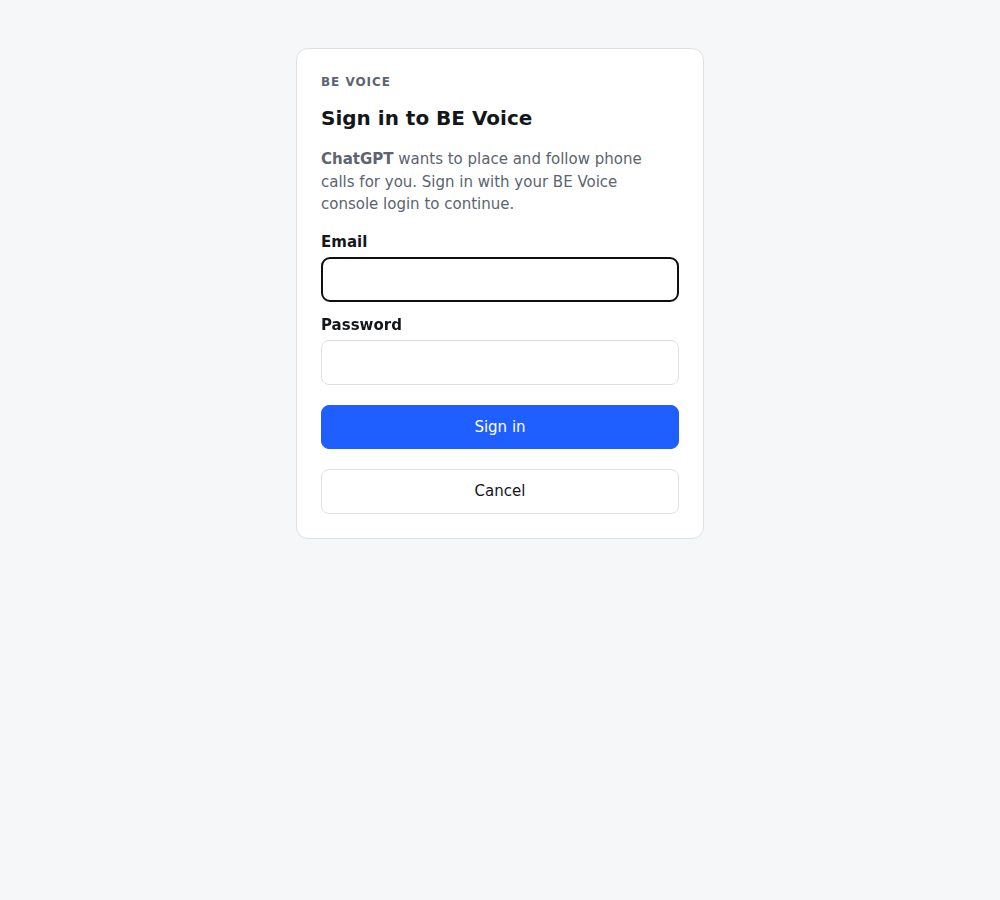
- Sign in to BE Voice with your console email and password. Too many wrong tries locks sign-in for 15 minutes.
- On Connect … to BE Voice?, check the email shown is yours, and pick the account the app may use. An account without calls through MCP shows "(calls through MCP not switched on)" and can't be picked.
- Read what the app will be able to do, and click Approve. You go back to the app, connected.
The app will be able to:
- place phone calls from the account's numbers, with the goal and instructions it gives;
- follow those calls, give the AI new instructions while they're on, and hang up;
- read the account's calls: status, outcomes, answers, summaries and transcripts;
- see the account's caller numbers and voices.
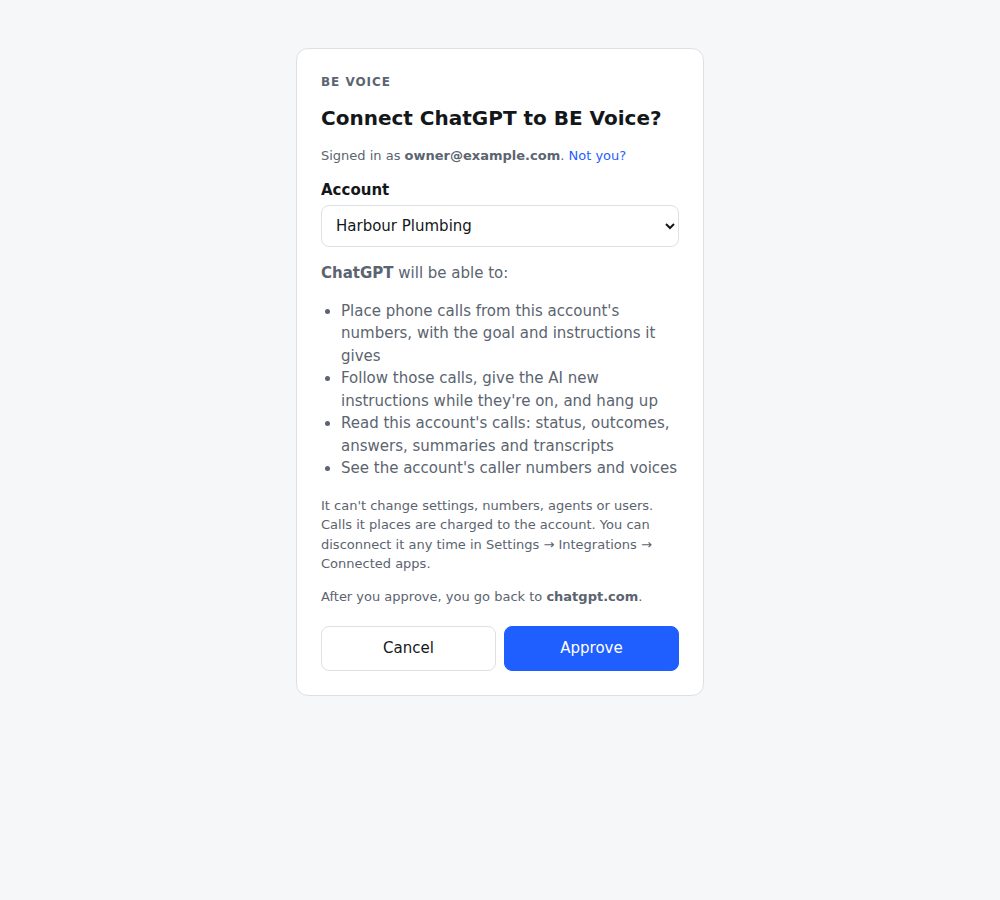
It can't change settings, numbers, agents or users. Calls it places are charged to the account, and count towards the account's rate limits and usage report like an API key. The app stays connected and renews its own sign-in, so there's nothing to enter again.
Disconnecting an app
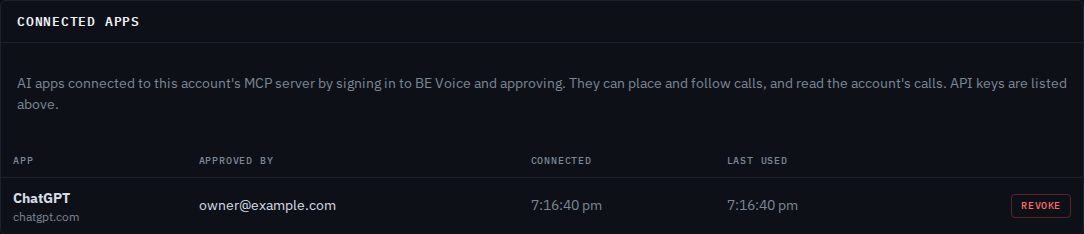
Open Settings → Integrations → Connected apps. Each app is listed with who approved it, when it was connected and when it was last used. Click Revoke to stop it working at once; to use it again, connect it again from the app. An app also stops working by itself if the person who approved it is removed from the account.
Developer tools: connect with an API key
Developer tools send an API key in an Authorization: Bearer header. Make a key for each person's tool in Settings → Integrations → API keys (see API keys and basics), then add the server as below. In every example, replace bevk_xxxxxxxx… with the key, and keep the key out of files you share.
Claude Code
Run this once in a terminal. Add --scope user to use it in every project.
claude mcp add --transport http be-voice https://voice.binaryelements.com/mcp \
  --header "Authorization: Bearer $BE_VOICE_KEY"
Use double quotes so the shell fills in $BE_VOICE_KEY. Check it with claude mcp list, then ask Claude to "list the BE Voice caller numbers".
Cursor
Add the server to ~/.cursor/mcp.json (all projects) or .cursor/mcp.json (one project):
{
  "mcpServers": {
    "be-voice": {
      "url": "https://voice.binaryelements.com/mcp",
      "headers": { "Authorization": "Bearer ${env:BE_VOICE_KEY}" }
    }
  }
}
Set BE_VOICE_KEY in your environment, then turn the server on in Cursor Settings → MCP.
VS Code
Add .vscode/mcp.json to your workspace. VS Code asks for the key the first time and stores it securely:
{
  "inputs": [
    { "type": "promptString", "id": "be-voice-key", "description": "BE Voice API key", "password": true }
  ],
  "servers": {
    "be-voice": {
      "type": "http",
      "url": "https://voice.binaryelements.com/mcp",
      "headers": { "Authorization": "Bearer ${input:be-voice-key}" }
    }
  }
}
Other apps
Most other apps take a configuration along these lines; the exact shape varies by app:
{
  "mcpServers": {
    "be-voice": {
      "type": "http",
      "url": "https://voice.binaryelements.com/mcp",
      "headers": { "Authorization": "Bearer bevk_xxxxxxxx…" }
    }
  }
}How the server works
- Address
POST https://voice.binaryelements.com/mcp.GETanswers405: there's no event stream.- Transport
- Streamable HTTP. Each request is one JSON-RPC 2.0 message, and each reply is plain
application/json. Notifications (noid) are accepted with202. Requests are up to 256 KB. - Protocol versions
2025-06-18,2025-03-26and2024-11-05.initializeagrees on the version you ask for, or the newest.- Methods
initialize,ping,tools/listandtools/call.- Sign-in
Authorization: Beareron every request, with one of your API keys or the token an app gets when someone signs in and approves it. Apps that support MCP sign-in (OAuth) find how to sign in from the server itself, so you only give them the address. A missing or wrong key gets HTTP401; an account without Calls through the API and MCP gets403 module_off.
You can try it with curl:
curl https://voice.binaryelements.com/mcp \
  -H "Authorization: Bearer $BE_VOICE_KEY" -H "Content-Type: application/json" \
  -d '{"jsonrpc": "2.0", "id": 1, "method": "initialize",
       "params": {"protocolVersion": "2025-06-18", "capabilities": {},
                  "clientInfo": {"name": "curl", "version": "1"}}}'

curl https://voice.binaryelements.com/mcp \
  -H "Authorization: Bearer $BE_VOICE_KEY" -H "Content-Type: application/json" \
  -d '{"jsonrpc": "2.0", "id": 2, "method": "tools/call",
       "params": {"name": "place_call", "arguments": {
         "to": "+61400000000",
         "goal": "Confirm Sam can take delivery of order A1002 on Friday morning",
         "prompt": "You are Alex from Harbour Plumbing. Offer Friday 8-12 or 12-5."}}}'
{
"jsonrpc": "2.0",
"id": 2,
"result": {
"content": [{"type": "text", "text": "Calling +61400000000 from +61370000000. Call id cal_7h2kq9m4x8pz3vd61wtn. Use wait_for_call to get the result."}],
"isError": false,
"structuredContent": {"call_id": "cal_7h2kq9m4x8pz3vd61wtn", "status": "queued", "from": "+61370000000", "to": "+61400000000"}
}
}Each tool returns readable text in content and, where there's data, the same as JSON in structuredContent. When a tool can't do what was asked (a number on the do-not-call list, a call that has ended, a call ID that isn't yours), the reply is a normal result with "isError": true and a sentence the assistant can read and act on.
The tools
| Tool | Inputs | Returns |
|---|---|---|
place_call | to and goal (required); optional prompt, greeting, from, context, questions, human, voice, speed, stability, max_call_sec | Rings the number now. Returns call_id, status, from and to at once, without waiting for the call. |
wait_for_call | call_id; seconds to wait, 1 to 50 (default 30) | The result once the call ends: outcome, answers, summary and transcript. If it's still going when the wait runs out, the transcript so far with final: false; call it again. |
get_call | call_id | The call now: status, live transcript, and the result once there is one. |
steer_call | call_id, instruction | Passes a new instruction to the AI on a live call. The person doesn't hear it; the AI acts on it at a natural moment. |
hang_up | call_id | Ends a call that is ringing or on. Says so if it had already ended. |
list_caller_numbers | none | Your numbers calls can come from (place_call's from), as numbers. |
list_voices | none | The voices the AI can speak with (place_call's voice), each with an id, name and description, and the default. |
list_recent_calls | limit, 1 to 50 (default 10) | Your account's most recent calls, newest first. |
place_call's inputs mean the same as the task fields of the API: see Place an AI call. human is {"target": "ext:101", "then": "+61370000000"}, and questions take key, ask, type (text, number, yes_no, choice, date), choices and required. The result from wait_for_call and get_call has the same fields as the API's result.
An example conversation
- You
- Call Sam at +61400000000 and confirm Friday delivery for order A1002. Morning or afternoon, whichever suits. Tell me what they say.
- Assistant
- Uses
place_callwithto+61400000000, the goal "Confirm Sam can take delivery of order A1002 on Friday, morning or afternoon", a short prompt saying who's calling and why, and achoicequestion for the window. Gets backcal_7h2kq9m4x8pz3vd61wtn. - Assistant
- Uses
wait_for_call. After 30 seconds the call is still on, so it uses it again. - You
- (while it's on) Tell them the driver will ring 30 minutes before.
- Assistant
- Uses
steer_callwith that instruction, then keeps waiting. - Assistant
- "Sam confirmed Friday afternoon, 12 to 5. They know the driver will ring 30 minutes ahead, and the side gate code is 4411. Outcome: completed."
Safety
- These are real calls.
place_callrings the number straight away. Check your assistant asks you before it places a call, if it has a setting for that. - The same rules as the API. Calls come only from your business's numbers, emergency numbers are refused, numbers on your do-not-call list are refused, and your account's limit on calls at once applies. A person who asks not to be called again goes on that list.
- Calling hours are up to you. Like an API call, an MCP call has no calling window: it rings whenever it's placed. Keep to sensible hours and the rules for your kind of call.
- Rate limits. An assistant can place up to 30 calls a minute for your account (shared with the API). Over that,
place_callsays when to try again. See Rate limits. - Your account only. A key or a connected app only reaches your business's calls. Revoke the key, or the app under Connected apps, to cut the assistant off at once.