BE VOICE
Your phone system
Set your opening hours, holidays and switches
Rules by time send calls one way when you're open and another when you're closed, on public holidays or over Christmas. Switches let you change where calls go in a hurry, without touching the routing.
How to set your opening hours
- Open Routing and click your Rules by time box (for example "Main line"). If you don't have one, drag Rules by time in from the palette and connect your number to it.
- In the side panel, find the rule set to During these hours.
- Tick the days, then set the from and to times.
- For different hours on other days, click + Add hours and set those days and times too. The ✕ removes a row.
- Connect the rule's dot on the canvas to the first step for those hours, and Other times to the step for when you're closed.
- Trace a call at a few different times, then Publish.
The kinds of rule
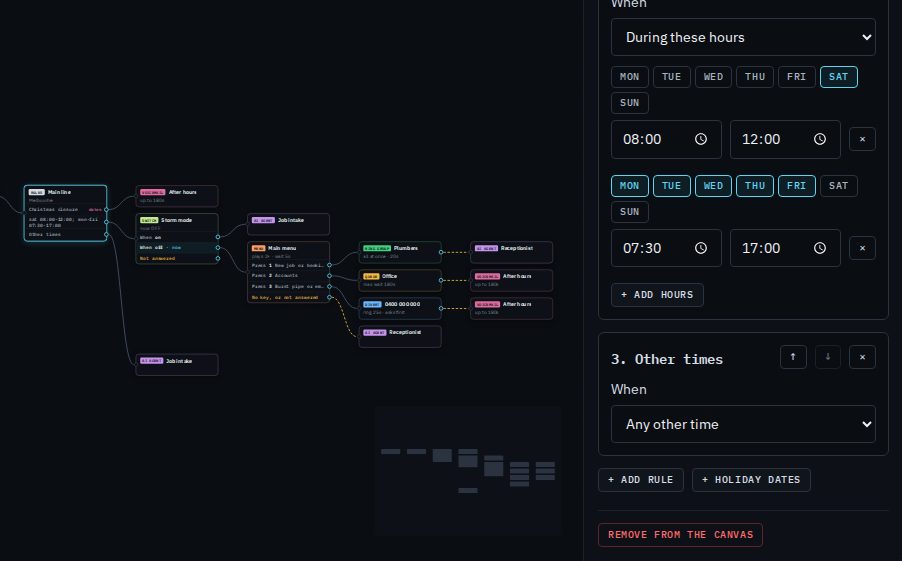
Each rule has a When:
- During these hours
- The days and times you set. You can add several rows, such as weekdays and Saturday mornings.
- On these dates (holidays, closures)
- Whole days: public holidays, a closure, a stocktake day. See below.
- Any other time
- Every time not caught by a rule above it. On the canvas it's called Other times.
- Always
- Every call, whatever the time.
+ Add rule adds another rule at the bottom. The ↑ and ↓ buttons move a rule; ✕ removes it.
The order rules are checked in
Rules are checked from the top down, and the first one that matches the time of the call is used. That's why holidays must sit above your opening hours: on a public holiday that falls on a Tuesday, the Tuesday hours would otherwise win. The side panel warns you if a dates rule is below your hours, and a rule below Any other time or Always is marked never reached on the canvas.
Harbour Plumbing's Main line, top to bottom:
- Christmas closure (25 and 26 December, 1 January) → the After hours voicemail.
- Monday to Friday 07:30–17:00 and Saturday 08:00–12:00 → the Storm mode switch, then the main menu.
- Other times → the Job intake AI agent.
How to close for public holidays and Christmas
- Click your Rules by time box and click + Holiday dates. The new rule is added at the top, so it wins over your hours.
- Give it a name in What the days are, such as "Christmas closure". It's shown on the canvas.
- Set the dates. Use the first date box for a single day, or both for a range (for example 24 December to 2 January). Tick Every year for a date that repeats, like Christmas Day. + Add dates adds another day or range.
- Or tick public holidays from the list underneath (see next section).
- Connect the rule's dot to what callers should get, such as voicemail or an AI agent, then trace a call on one of the dates and Publish.
Dates are whole days in the rule set's time zone.
Public holidays for where you are
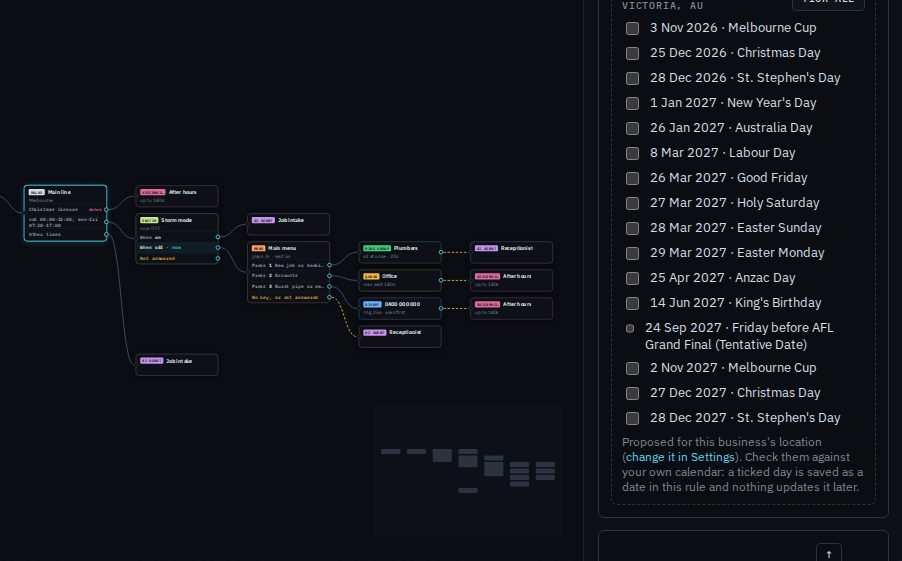
Under a dates rule, BE Voice lists the coming public holidays for your business's location, for example Public holidays · Victoria, AU. Tick the ones you close for, or click Tick all. A ticked holiday is saved in the rule as a plain date.
Time zone
Each Rules by time box has its own Time zone: Melbourne, Sydney, Brisbane, Adelaide, Perth, Hobart or Darwin. Hours and dates are read in that time zone, and daylight saving is handled for you. If you have a number for an office in another state, give it its own rule set in that office's time zone. Trace a call also uses the rule set's time zone.
Switches: change where calls go in a hurry
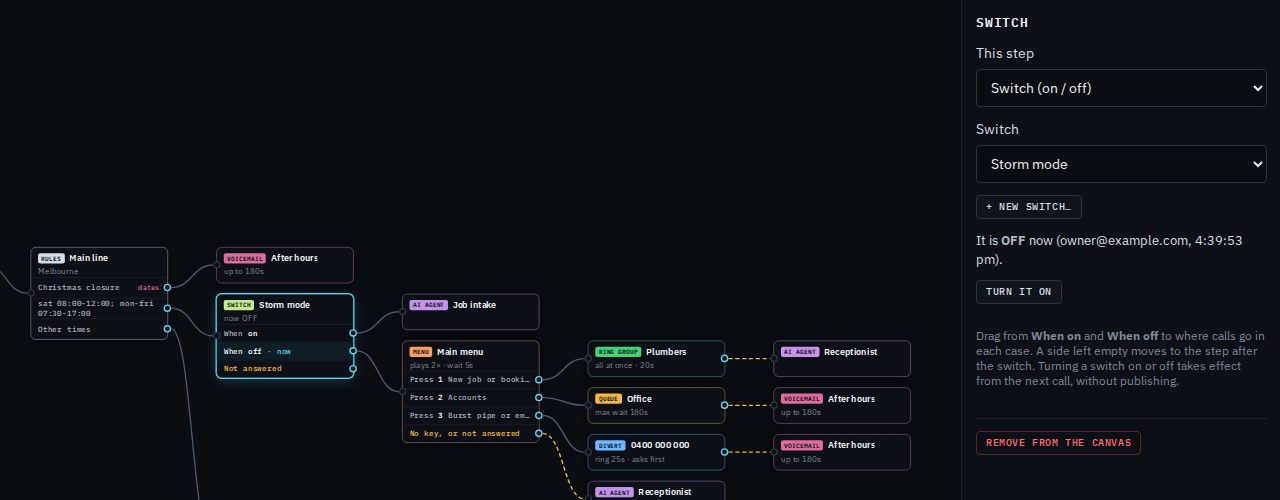
A switch is a named on/off setting, such as "Storm mode" or "Closed today". On the canvas, a Switch step sends calls one way while it's on and another while it's off. Flipping it is live from the next call, with no publishing, so anyone who manages your business can do it in seconds.
Harbour Plumbing uses Storm mode for wild weather, when every plumber is out on burst pipes and nobody can answer. Normally, open-hours calls go to the main menu. With Storm mode on, they go straight to the Job intake AI agent, which takes down each job.
How to add a switch
- On the Routing tab, drag Switch onto the canvas and connect it where it should take effect, for example from your open-hours rule.
- In the side panel, click + New switch…, type what it is (for example "Storm mode") and save. A new switch is off.
- Drag from When on to where calls go while it's on, and from When off to where they go normally. A side you leave empty moves on to the step connected to Not answered.
- Trace a call with the switch ticked and unticked to check both ways, then Publish.
How to flip a switch
Your switches are listed in a strip above the canvas. Click one, then confirm. You can also select the switch on the canvas and click Turn it on or Turn it off in the side panel, which also shows who changed it last and when.