 BE VOICE
Settings
Change your business settings
Settings holds the things that apply to your whole business: your details and location, whether calls are recorded and transcribed, and connections to your own systems.
How to open Settings
- Sign in to the BE Voice console.
- Click the Settings button at the top right, next to your business name (or the Settings tab at the end of the row of tabs).
- Pick a section from the menu on the left: Business, Calls, Messages and alerts or Integrations.
Most changes save as soon as you tick a box or pick from a list, and you'll see a short "Saved" message. They apply from the next call; calls already in progress carry on as they were.
Business
The Business section shows your business's details. You can't edit them here: if your business name needs to change, get in touch and we'll change it for you.
- Name
- Your business name as it appears at the top of the console and in the emails BE Voice sends you.
- Account ID
- The long code that starts with
tnt_is your account ID. Quote it when you contact support so we can find your account straight away. Your developer will also need it if they connect your own systems to BE Voice. - Created
- When your business was set up in BE Voice.
The Change my password button in this panel changes the password you sign in with. See Who can sign in.
Location
Below your details, choose your Country and State or region. BE Voice uses them to suggest the right public holidays when you add holiday dates to your call routing, for example Victorian holidays for a business in Port Melbourne. Choosing a location doesn't change your routing by itself: you still decide what happens on each holiday.

Calls: recording and transcripts
- Open Settings → Calls.
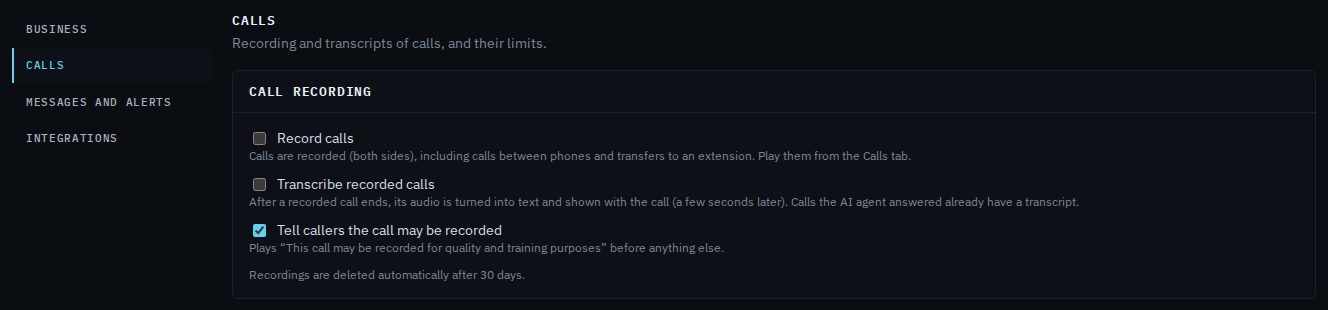
- Tick or untick the boxes under Call recording. Each one saves straight away.
- Listen to recordings and read transcripts on the Calls tab. See Calls, recordings and transcripts.
- Record calls
- Records both sides of your calls, including calls between your own phones and calls transferred to an extension. Turn it on if you want to listen back to calls for training, quality or disputes.
- Transcribe recorded calls
- After a recorded call ends, the recording is turned into text and shown with the call a few seconds later. It needs Record calls on. Calls the AI agent answered always have a transcript, whether this box is ticked or not.
- Tell callers the call may be recorded
- Plays "This call may be recorded for quality and training purposes" before anything else on the call. It's on for new businesses. We recommend leaving it on whenever you record calls, so callers know.
- How long recordings are kept
- The line under the boxes says how many days recordings are kept, for example "Recordings are deleted automatically after 30 days". After that the recording is gone for good. Download any you need to keep from the Calls tab before then.
Messages and alerts
This section sets who gets an email when someone leaves a voicemail, when the AI agent takes a message, or when a call is missed. It has its own guide: Messages and alerts.
Integrations
Integrations is where BE Voice connects to your own systems. You only need it if you or your developer are linking BE Voice to other software, and you can leave it empty otherwise.
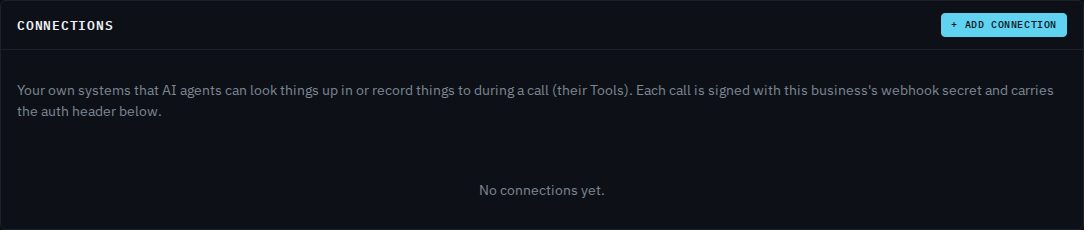
- Connections
- Your own systems that AI agents can look things up in, or record things to, during a call: for example checking an invoice or booking a job. Campaigns can also fetch their call list from a connection and send back what happened. Click + Add connection to add one, and Test to check it answers. Your developer will give you the address and any password it needs.
- Call events
- An address in your own system, such as your CRM, that hears about every call as it happens: a call starting or ending, a message taken, a summary of an AI call. Enter it and click Save; clear it to stop.
- Webhook secret
- The code BE Voice signs everything it sends to your systems with, so they can check it really came from us. Show or Copy it for your developer. Replace makes a new one and the old one stops working at once, so only replace it when your developer is ready to update your systems straight away.
- API keys
- Keys let your other software, or a developer, work with BE Voice directly. A key is shown once, when you create it, so copy it straight away. Revoke stops a key working immediately.
- Connected apps
- AI assistants that someone connected to your account by signing in, so they can place and follow calls for you. Each shows who approved it and when it was last used. Revoke stops one working at once. See MCP: calls from an AI assistant.
Your developer can find everything they need to use connections, webhooks and API keys on our developer pages.
Why your Settings may look different
Settings shows only what applies to your business. Connections are only useful if your plan includes AI agents or campaigns. People who sign in to manage your business are added by us, so there's no section for them here: see Who can sign in. If you expected something that isn't there, ask us.