 BE VOICE
Getting started
Your first day: from sign-in to the first call
This guide is for the person who runs the phones for the business. It takes you from the invitation email to a working phone line, in the order that saves you going back and forth.
Sign in for the first time
When your business is set up, we add you as its admin and BE Voice emails you an invitation. It comes from BE Voice with the subject You're invited to BE Voice.
- Open the email and click Choose a password.
- The page says Welcome and shows your email address. Type a password of at least 12 characters, then type it again.
- Click Save password. You're taken back to the sign-in page with the message "Password saved. Sign in with it."
- Enter your password and click Sign in.
Bookmark the sign-in page so you can find it again. Your email address is your sign-in name.
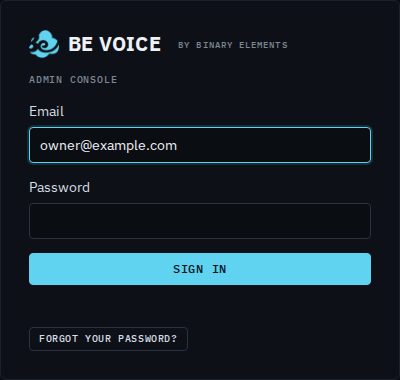
If you forget your password
- On the sign-in page, click Forgot your password?
- Check your email address and click Email me a link.
- Open the email (subject Reset your BE Voice password) and click Choose a new password.
- Type your new password twice and click Save password, then sign in.
The reset link works once, for one hour. If you didn't ask for it, ignore the email: your password stays as it was. To change a password you still know, see changing your password.
What you see once you're in
The top of the page says Your business with your business name underneath. Below that is a row of tabs, one for each part of your phone system, and a Settings button on the right. Finding your way around explains every tab.
Set things up in this order
Each step uses what you made in the one before, so working down this list means everything you need is there when you get to it.
- Phones for your staff. Add a phone (an extension, like 101) for each person or desk that takes calls. Web phone users sign in with their email; a desk phone gets sign-in details, and a Yealink desk phone sets itself up from one address. See Phones and extensions and Set up a Yealink desk phone.
- Ring groups and queues. If calls should ring several people, put their phones in a ring group (everyone rings together, or one after another). If callers should wait on hold for the next free person, make a queue. See Ring groups and Queues.
- What happens when someone calls your number. Choose what answers your number: a phone, a ring group, a queue, an AI agent, or a set of rules for opening hours, after hours and holidays. See Your numbers for the quick way and Call routing for the full picture.
- Your AI agent, if you have one. Give it a greeting, tell it about your business, and choose who it can put callers through to. See AI agents.
- Messages and alerts. Choose who gets an email when a caller leaves a voicemail, the AI agent takes a message, or a call is missed. See Messages and alerts.
Letting other people in
Staff who only answer calls don't need to sign in to the console: they need a phone. If a colleague should help you manage the phone system, see Who can sign in.